
Navigation and commands
Every way to move around VCode and every command it runs, with the phone way and the desktop way side by side. Each row links to the page with the details.
Why you would use it
You know what you want to do, such as switching tabs, renaming one or opening the files, but not the gesture on a phone or the key on a desktop. Find the action here, then follow its link.
How to use it
Find the action in the tables below. The Phone column is touch. The Desktop column is a mouse and a hardware keyboard. The keys also work on a phone or tablet with a keyboard attached.
Mod is ⌘ on a Mac, iPhone or iPad, and Ctrl everywhere else. The other platform's key does nothing: on a Mac, Ctrl+T is not a new thread. The tooltips on the buttons show the key for your platform, as in "New thread (⌘T)".
The keys in these tables are the defaults. You can give any of them another key, or none, in settings: see change keyboard shortcuts.
Some rows need the wide layout, a window at least 760 px wide (see the wide layout).
Tabs and threads
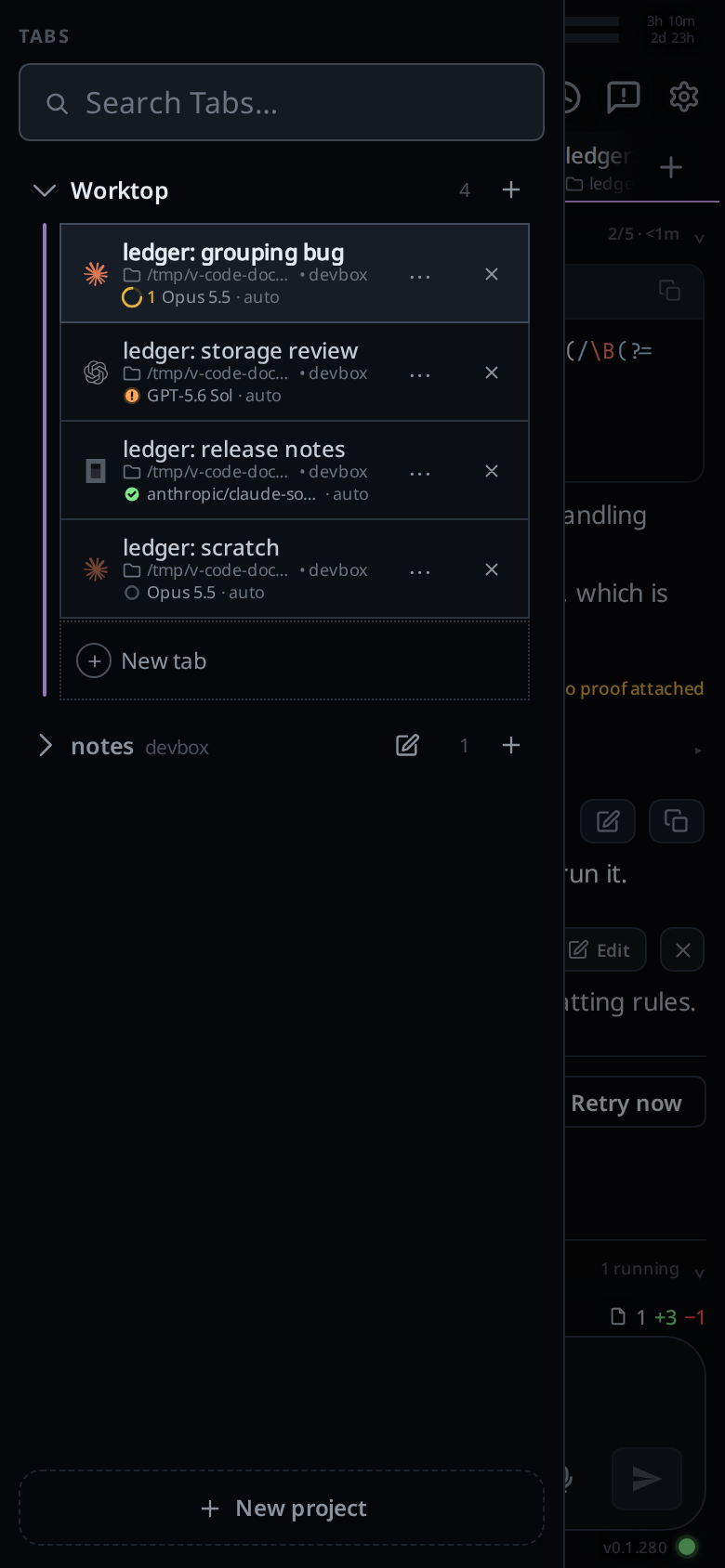
| Action | Phone | Desktop |
|---|---|---|
| Switch tab | Tap the tab in the strip, or swipe the transcript sideways | Click the tab |
| Next or previous tab | Swipe left or right on the transcript | Ctrl+PageDown or Ctrl+PageUp (Ctrl on a Mac as well). On a Mac, ⌥⌘→ or ⌥⌘← and ⇧⌘] or ⇧⌘[ do the same, as they do in Safari and Chrome. With split panes, the focused pane's file and preview tabs come after its threads. Wraps at both ends; hold to keep moving |
| Last tab | Ctrl+Tab (Ctrl on a Mac as well) goes back to the tab you were on before, a file or preview tab included; press it again to come back. Works from the message box and from a file open in its pane. A browser tab keeps Ctrl+Tab for itself, so it reaches VCode in the installed app | |
| Scroll a long tab strip | Drag it sideways | Mouse wheel over the strip |
| New thread | Tap + (#new-tab): in a project the tab opens at once; in Worktop the card opens. Or swipe past the last tab: in a project an empty tab waits for its first message; in Worktop tap + (#endpage-plus) on the new-thread page |
Mod+T or Mod+N, or click + |
| New project | New project (#drawer-new) at the bottom of the tab bar |
The same, in the tab column |
| Switch project | Tap the project's name in the tab bar, or a tab under it | Click it in the tab column, or Ctrl+Shift+PageDown or Ctrl+Shift+PageUp (Ctrl on a Mac as well) for the next or previous project in the tab bar's order. Wraps at both ends; hold to keep moving |
| New tab in this folder | /new, or /new <folder> |
The same |
| Close tab | Tap the × on the active tab | Mod+W, click the × (it shows on hover), or right-click the tab and choose Close. With the tab focused, Delete or Backspace |
| Close a tab with a turn running | Tap × twice within 3 s. The first tap turns it red | Mod+W twice within 3 s. The first press shows "Running. Ctrl+W again within 3s stops the turn and closes the tab" |
| Reopen a closed tab | The history icon (#recent-open) in the top bar opens Recently closed; tap the tab |
The same, with the arrow keys and Enter. Mod+Shift+T reopens the newest closed tab in the installed app and the desktop app; a browser tab keeps Mod+Shift+T for itself |
| Find and resume any session | /resume (/sessions), or Resume… in the Threads sheet |
Mod+O. Arrow keys move, Enter reopens |
| Rename a tab | Tap its label or folder line in the strip, or use the pencil in the Threads sheet; Enter saves, Escape cancels | The pencil in the Threads sheet, /rename <name> (/r), or Mod+Shift+R (Mod+R in the desktop app) |
| Reorder tabs | Hold a tab for 350 ms, then drag. A tab moves inside its project | Drag the tab |
| Colour a tab | /colour <name> (/color): red, orange, yellow, green, cyan, blue, purple, pink, or none |
The same |
| Move a tab to another folder | Folder button (Move to another folder) on its row in the Threads sheet | The same |
| Open the tab bar | Tap Tabs (#tabs-open) beside Files, or swipe right from the left edge of the transcript |
From 1080px it is a column on the left; Tabs hides and shows it. Narrower, Tabs opens the drawer |
| Open the Threads sheet | All threads in the new-thread card | The same |
| Hand the tab to another agent | The agent pick (#agentpick) under the box, or /handoff <agent> |
The same |
Going back and closing things
| Action | Phone | Desktop |
|---|---|---|
| Close the top sheet, drawer or menu | The phone's back button or gesture; each press closes one layer | Escape, Mod+W, or the browser's back button |
| Close a drawer | Tap the dimmed area beside it, or swipe it back | Escape |
| Stop the running turn | The send key, which turns into Stop while a turn runs and the box is empty | Escape with nothing else open, or the Stop key |
| Hide a toast | Tap it | Click it |
The message box
| Action | Phone | Desktop |
|---|---|---|
| Send | Tap send (#send) or the keyboard's send key |
Enter |
| Dictate | Tap the mic (#mic) |
Mod+Shift+M starts and stops it, or click the mic |
| New line | None: the keyboard's Enter sends | Shift+Enter |
| Steer the running turn instead of queueing | Tap Steer (#steer) |
The same |
| Start typing from anywhere | Tap the box | Type: the first key goes into the box |
| Previous prompts | None | ↑ on the first line, ↓ on the last |
| Clear the box | Select all and delete, or hold Backspace | Escape twice within 700 ms |
| Delete word by word | Hold Backspace: after 2 s it takes whole words | Alt+Backspace (on a Mac, the Mac's own Option+Backspace) |
| Move a word | None | Alt+← or Alt+→ off a Mac (the Mac keeps its own Option keys) |
| Attach a file | Tap + (#attach) for a photo; hold it for any file |
Click +; right-click it for any file. Or paste an image into the box |
| Switch model or effort | The model and effort picks under the box, or /model, /effort |
The same |
| Shell mode | The Agent / Shell chips beside send | The same |
| Run one shell command | Start the line with ! |
The same |
The slash menu
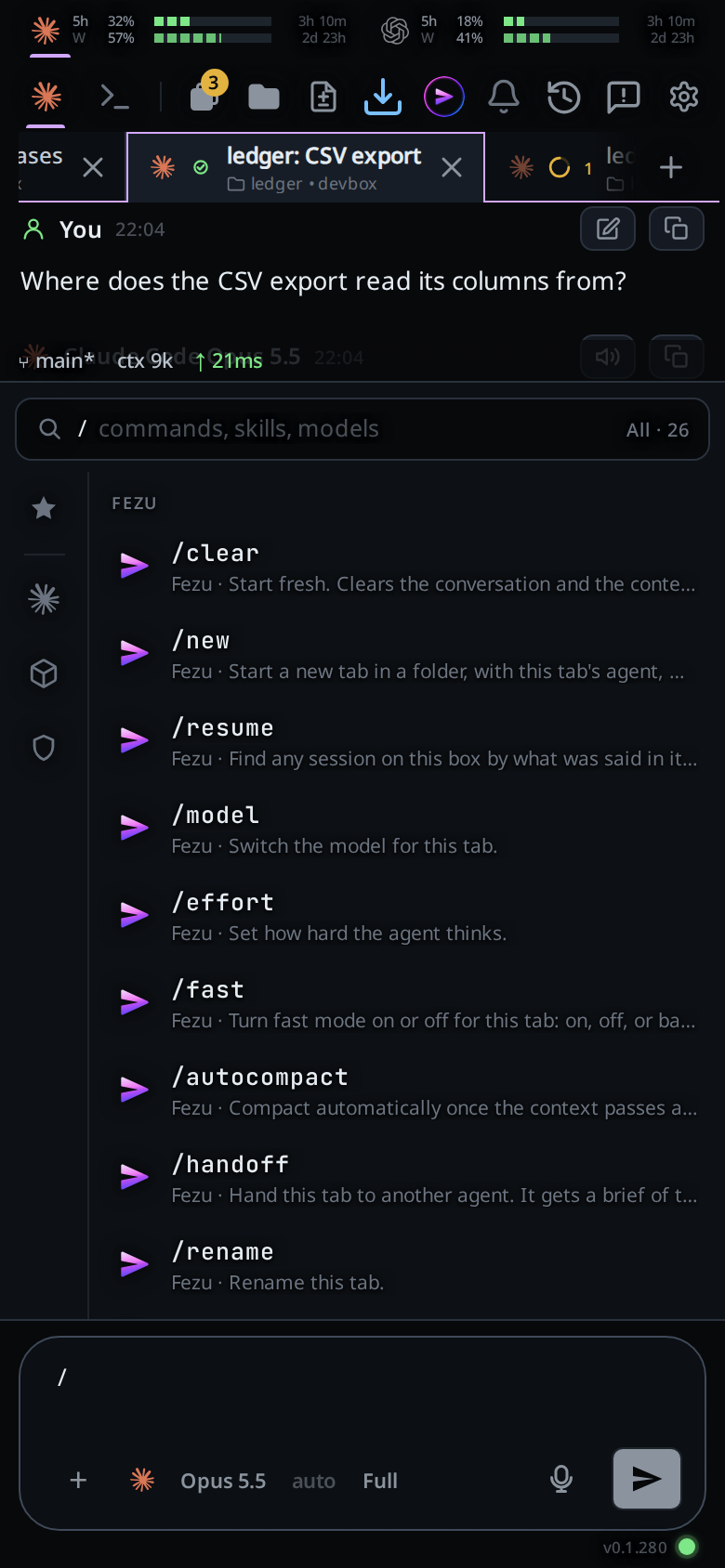
| Action | Phone | Desktop |
|---|---|---|
| Open the menu | Type / in the box |
The same |
| Pick a row | Tap it | ↓ and ↑ to walk, then Enter or Tab |
| Take the top match | None | Tab |
| Close the menu | Back, or delete the / |
Escape |
Split panes (wide layout only)
| Action | Keys |
|---|---|
| Split right / split down | Mod+D / Mod+Shift+D, or the Split right and Split down buttons (#split-right, #split-down) |
| Move to the pane in a direction | Alt+Shift+arrow (⌃⌘+arrow on a Mac, where ⌥⌘↑ and ⌥⌘↓ work too), or click the pane |
| Maximise the focused pane, or put the panes back | Alt+Enter |
| Switch the focused pane between the agent and its terminal | Ctrl+` (on a phone: Shell mode and back) |
| Ctrl+B, then a key within 1.5 s | % split right, " split down, an arrow to move, o next pane, z zoom, x close the pane (the tab stays open), Escape to cancel |
| Resize | Drag the line between two panes |
| Move a tab to another pane | Drag it from the pane's strip onto the other pane |
| New thread in an empty pane | Focus the pane and press any letter, Space or Enter |
On a phone there are no panes: one tab fills the screen.
Files
| Action | Phone | Desktop |
|---|---|---|
| Open the file explorer | Tap the folder button (#files-open), or swipe left from the right edge |
Mod+P, which also puts the cursor in the filter. From 1080 px wide the explorer is a column you hide and show |
| Find a file | Type in the filter | The same; Escape clears the filter, then closes the drawer |
| New file, folder, rename, delete | Hold a row for half a second | Right-click the row |
| Save an edit | The save button (#viewer-save) in the viewer |
Mod+S |
| Comment on a line | Hold the line in the viewer | Right-click the line |
The transcript and the shell
| Action | Phone | Desktop |
|---|---|---|
| Jump to the latest message | Tap the arrow (#tobottom) |
The same |
| Page through | Scroll | PageUp and PageDown, even from the message box |
| Keys a phone keyboard lacks | The keycaps in shell mode: Tab, Esc, ↑, ↓, ^C, ^L, ⏎, ^D | Type them |
Commands VCode runs itself
Type these in the box, or pick them from the slash menu. The agents column is
where each one is offered.
| Command | Agents | What it does |
|---|---|---|
/clear |
all | Starts the agent on a fresh context in the same tab |
/new [folder] |
all | Opens a tab in the active project: with this tab's agent, model and effort, in this folder or the one named; bare /new in a project is the project's + |
/resume, /sessions |
all | Opens the resume screen: every session on this box, searched by what was said in it |
/model [name] |
all | Sets the model; bare, it shows the current one |
/effort [level] |
claude, codex, opencode | Sets the reasoning effort |
/autocompact [120k|off|default] |
claude, codex, opencode | Sets this tab's auto compact mark |
/handoff <agent>, /vendor, /harness, /agent |
all | Hands the tab to another agent |
/rename <name>, /r |
all | Renames the tab |
/colour <name>, /color |
all | Colours the tab; bare, it lists the colours |
/exit, /quit |
all | Closes the tab |
/watch [pull request] |
all | Watches a pull request and wakes the agent on a failed check, a conflict or a change request; bare, it lists the watches |
/unwatch [number] |
all | Stops one watch; bare, every watch of the tab |
/refresh-models |
all | Asks the agents' CLIs for their models again |
/update |
all | Updates the agent CLIs, then VCode on this machine, then the app |
!<command> |
all | Runs one shell command in the tab's folder and shows the output as a card |
/compact goes to claude and opencode as typed. A skill with the same name as
one of these wins. Commands the agents' own terminals have but VCode cannot run,
such as /cost, /diff or /mcp, answer with a toast naming what to do
instead. They are listed in vendor slash commands.
What you see
Buttons with a key carry it in their tooltip on a desktop: "New thread (Ctrl+T)", "Files (Ctrl+P)", "Split right (Ctrl+D)", "Save (Ctrl+S)", with ⌘ on a Mac. A key that does nothing in the current place, such as Ctrl+PageDown inside a sheet, is swallowed rather than passed to the browser.
Limits and known gaps
- Keys do nothing while a sheet, drawer or popup has the focus, except Escape and Mod+W, which close it. The tab bar docked as a column on a wide window is not a drawer: after a click on a project or a tab there, the tab and project keys still move. Its search field keeps them. Ctrl+B and the pane keys also skip text fields other than the message box.
- There is no key for reopening a closed tab: Mod+Shift+T, like Mod+Shift+P, Mod+Shift+N and Mod+Shift+W, stays with the browser.
- There is no key for the tab bar.
- The prompt history keys work in agent mode only, not in shell mode.
- In the Shell mode terminal, Ctrl and a letter on its own goes to the shell, not to the app's pane keys: Ctrl+B, Ctrl+D and Ctrl+W edit the command line there. With Shift added, or Cmd on a Mac, the pane keys still work.
Related
- Switch tabs: the tab strip and its keys in detail
- Split panes: everything about panes
- Change keyboard shortcuts: give a command another key
- The slash menu: how the menu matches and completes
- The back button: the order the layers close in
- Watch a pull request: what
/watchand/unwatchdo