
The layout on a tablet or desktop
Given a wide enough window the frame fills it, the whole app is scaled up, the conversation moves into a pane with a header of its own, and the tab bar and the file explorer stop being drawers and stand as columns either side of it.
Why you would use it
The app is built for a phone, where the explorer is a gesture and the type is sized for a screen held at arm's length. On a laptop that reads small and wastes room: you want the files always visible, tabs you can click and close from, and lines of text short enough to read back to their start. And with the room for two conversations side by side, each one needs its own tabs and its own buttons.
How to use it
Nothing to turn on. Resize the window, or open the app on a wider screen.
The frame fills whatever width the window has, at every size. From 760px wide it is also scaled up 1.1 times, so the phone's type sizes read on a desktop screen. The zoom control beside the bell changes that scale.
From 760px the conversation sits in a pane (
.pane) with a header of its own (.pane-head), and the top of the screen is one 48px row: the usage meters on the left, then Install, the update arrow, Notify, the zoom control (#zoom), the folder (#files-open), the branch (#changes-open), Tabs (#tabs-open) with its count of tabs that want you, and the cog (#settings-open) at the right end. The version and the connection dot (#link-dot) sit once at the bottom right, in a grey bar across the foot of the window, not under each pane's composer. The phone's tab strip (#tabstrip), plus (#new-tab) and Agent and Shell chips (#send-modes) are not shown: each pane header carries its own tabs and plus, and a terminal button. On a touch screen the two-row keypad stays in the bottom band while the focused pane's terminal is open.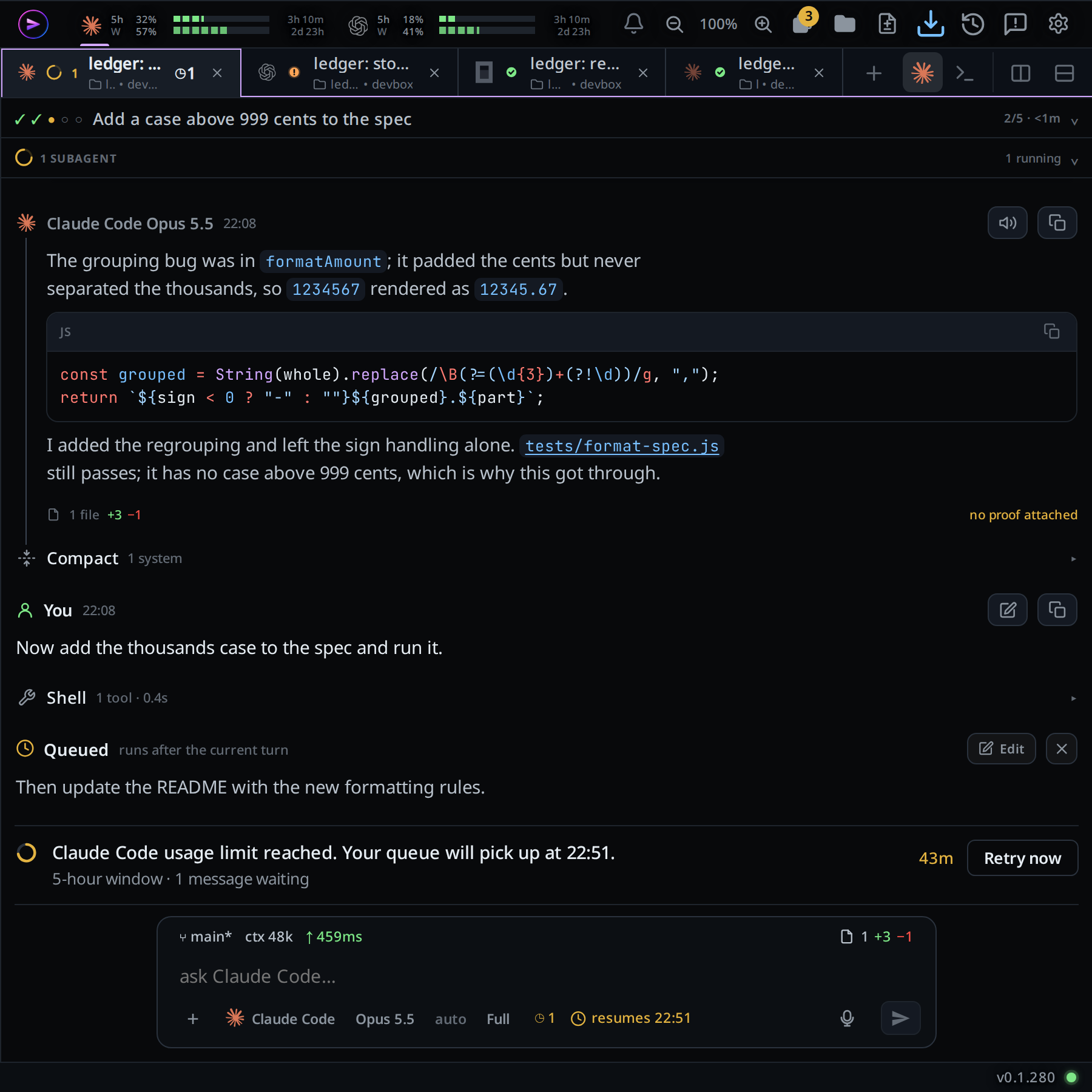
The pane header holds, left to right: the pane's tabs (
.pane-tabs), the plus (data-act="new-tab"), then at the right end the agent and terminal buttons (.pane-modes, terminal-split), Split right and Split down, Zoom pane and Close pane. With one pane the zoom and the close are not shown, and neither is the focus ring. With several panes, every pane shows these buttons, focused or not.The tabs in a pane header are a desktop tab bar: each one a rectangle the full height of the header, meeting the next one on a hairline, the tab you are in filled, with a thin coloured top edge and coloured sides, and the shared colour rail under the other tabs. Its bottom stays open. Every tab has a close cross; the pointer brightens the one it is over. A mouse wheel over the strip scrolls it sideways. The first tab starts at the pane's own edge, in every pane: the resize handle of the line on the left straddles that line rather than leaning into the pane. The first tab's coloured left edge sits beside the pane's line, so the ring of the pane you are in meets the tab in the pane next door across one hairline. See close-and-reopen-tabs.

Click Split right or Split down in a pane header, or press Ctrl+D or Ctrl+Shift+D, to put a second pane beside or under it. Up to six across and six down. Each pane keeps its own tabs, its own mode and its own header; the focused one is the one the composer, the status bar and the explorer follow, and it wears a violet ring.
From 1080px the tab bar docks as a column on the left (
#drawer), 264px of the frame's own: your projects, each with its tabs. Drag its right edge (#tabs-sash) to make it 200 to 480px wide; double-click the edge to put 264px back. The width is kept on this browser. Click Tabs (#tabs-open) to hide and show it; the choice is remembered on this browser. Below 1080px Tabs opens it as a drawer.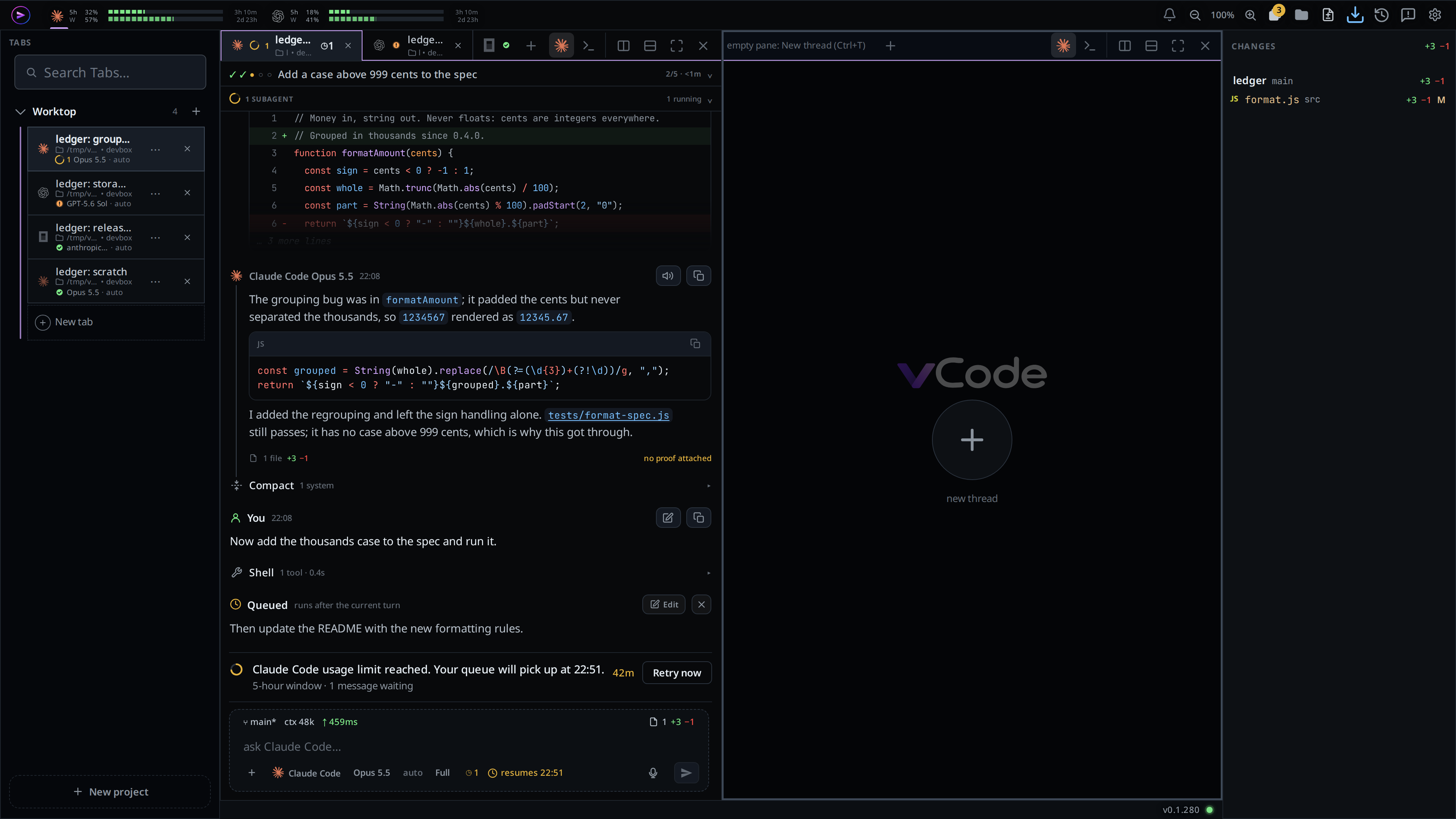
With the tab column showing, the file explorer docks as a column on the right (
#explorer) from 1360px; with the tab column hidden, from 1080px. It starts 280px of the frame's own, 308px on screen. Drag its left edge (#explorer-sash) to make it wider or narrower, from 200px to 720px of the frame's own; the panes beside it always keep 420px. Its rows are VS Code's there (22px tall, 16px icon and chevron columns, 8px of indent a level) rather than the phone's thumb-sized ones.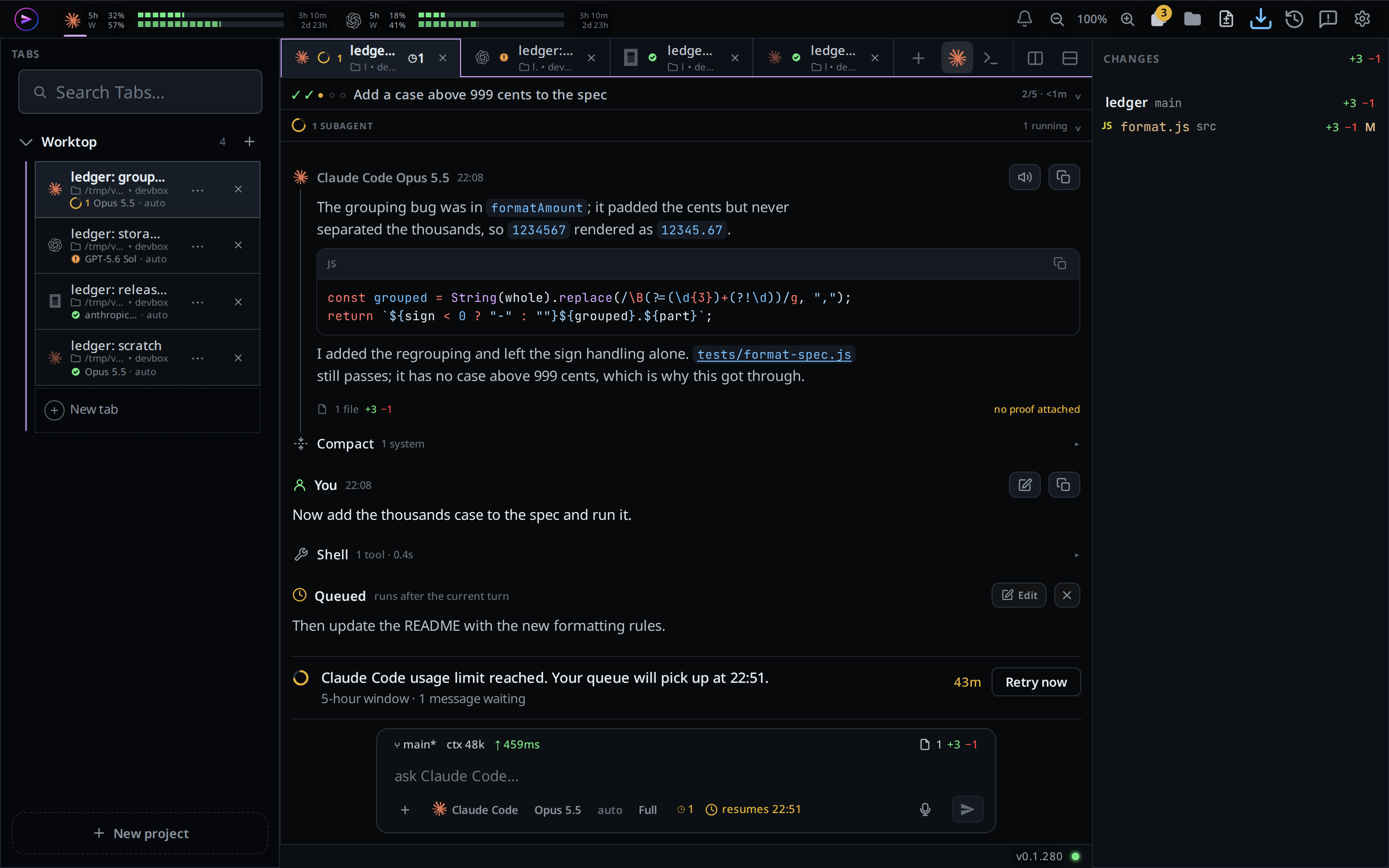
Click the folder button next to Notify (
#files-open) to hide and show the explorer column. The choice is remembered on this browser. The branch (#changes-open) does the same for the column's Changes side. Clicking the button of the side the column is not on adds that side, so the column shows the tree on top and Changes under it. With both shown, each button takes its own side away. These two buttons are the only switch: the column's head has no Files and Changes tabs, only the titleFILESorCHANGESof the side on top. With both shown, drag the line between them (#explorer-both-sash) to give Changes more or less of the column. Drag theFILEShead or theCHANGESbar onto a half of the other side to put it there: over, under, left or right. Side by side, each starts at the Files column's width, so the column doubles; it stacks again while the window has no room for both. Double-click either handle to put its size back. The place and the sizes are remembered on this browser. See session-changes.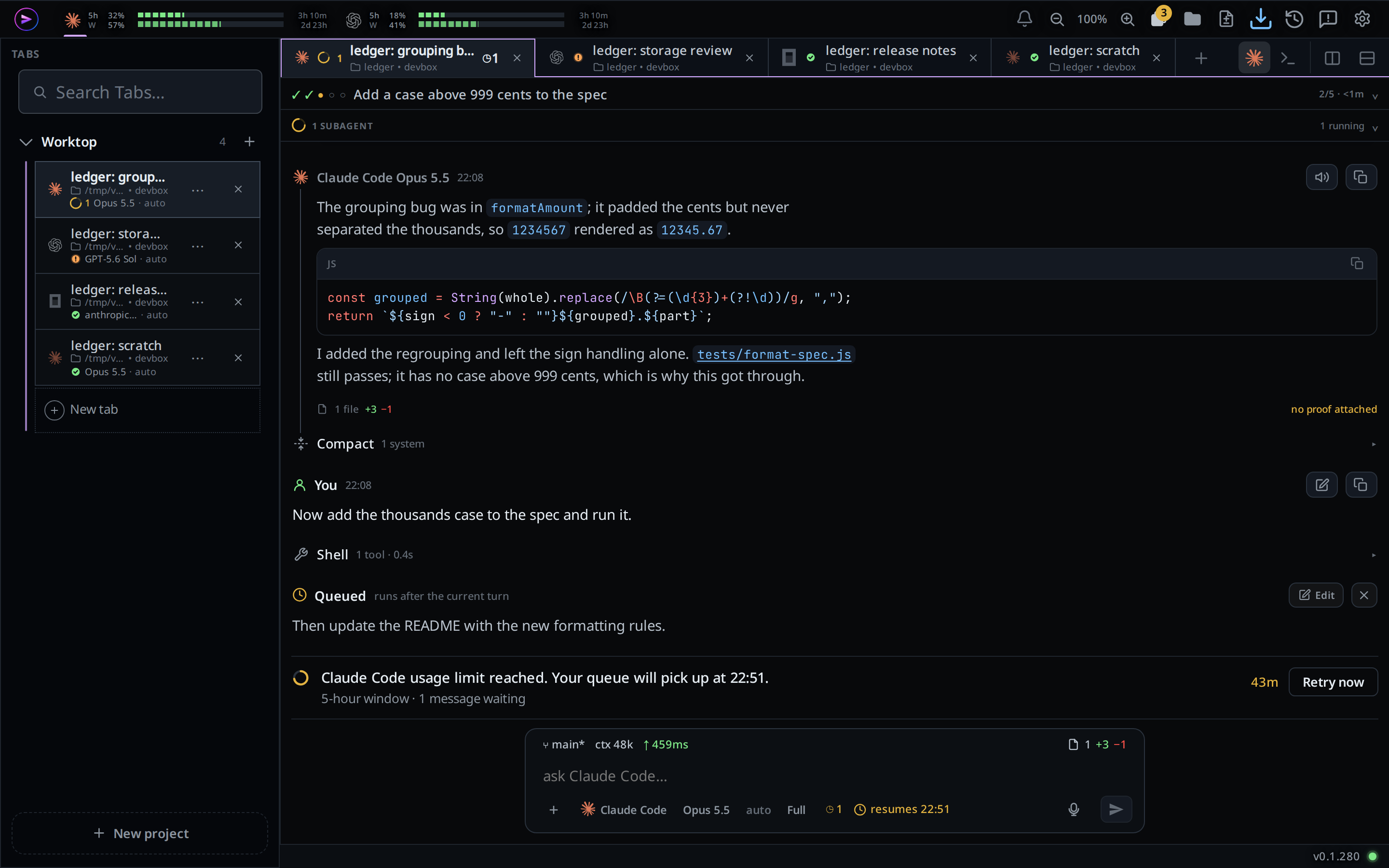
When the explorer cannot dock, the same button opens it as an overlay instead, from the button or the right edge.
What you see
- Each pane's terminal is its tab's own. A pane whose tab is in Shell mode shows the terminal in place of the conversation and the composer, and keeps it while the focus is in another pane. See terminal-split.
- The docked explorer has no scrim, no slide and no animation: it is furniture. Hidden, it leaves a slim rail where the column stood, so the files stay one tap away.
- The tab bar is a column from 1080px, with no scrim and no slide. Below that it is a drawer, pulled in from the left edge or opened with Tabs. Docked, Tabs lights up while the column shows.
- The composer is capped at 584px of the frame's own (642px on screen) and centred, and so is everything stacked above it in the bottom band: the status bar, the subagents strip, the attachment row, the key tray and the menu the slash menu and the agent, model and effort pickers open. They all start and stop where the box does. In a pane the status bar and the subagents strip are not in that stack: the strip is a header row at the pane's full width, and the status bar rides inside the box. The menu and the key tray carry the box's edge and corner rather than a line across the window. Every pane caps its own footer the same way, so a box is the same width whether one pane is open or four. A pane narrower than the cap gives its box the pane's width. A pane's footer is the box and the attachment row above it, and nothing else: the subagents strip is a header row under the pane's plan, and the status bar is drawn inside the box: the machine, branch, context and ping on a row above the words, what is waiting in the key row. The transcript scrolls under the box at its sides, unfaded. The box carries its own surface, so the text either side of it stays readable.
- The composer keeps the phone's shape (the entry, then the
+, the agent, model and effort buttons, the mic and send in the row under it), with one row added above the entry for the machine, branch, context and ping, and the row of keys is shorter, since a pointer hits a smaller key than a thumb: 13.75px in the entry, a 25px row of keys, a 30×25px send key, the agent, model and effort chips at 10.5px, and the rows of the slash menu and the chips of the attachment row brought down with them. The whole box is 69px of the frame's own, 76px on the screen. Every one of those is a frame px, and the frame is zoomed 1.1 times, so the entry reads at about 15px on the screen. The dashed box a pane without the composer shows is scaled with it, so the footers of four panes still line up. - The box opens at one line rather than the phone's two, and grows as you type, to seven and a half lines and no further: a fixed ceiling, where the phone has only a share of whatever the box stands in. The share is still there under it: a box in a pane shorter than about 450px stops at a third of the pane before it reaches that. Past it the message scrolls inside the box. Emptying it takes it back to one. A phone holds two lines open because a thumb writes into a box it cannot see past; a keyboard does not need them, and four panes each holding two spare lines is most of the floor of the window.
- The transcript is capped at twice the composer, 1168px of the frame's own (about 1285px on screen), and centred in its pane. The pane's plan and subagent rows keep the same column, so a reply's copy button, a strip's count and the "Retry now" button sit beside the text they belong to. The scroller keeps the pane's full width, so the wheel works anywhere in it and the scrollbar stays at its edge. A pane narrower than the cap gives the transcript its own width. The row on top and the Shell mode terminal are not capped.
- The diff sheet and the file viewer use the same centred column, header and body alike. A comment box on a line takes the composer's width. The image viewer keeps the whole sheet.
- Settings and the Threads sheet stop at 1200px and centre. On a wide frame Edit system prompt and Start thread keep the width of their label instead of stretching across the sheet.
- Scrollbars are thicker than the phone's: a 10px track with a 6px thumb that lightens under the pointer, in place of the 3px hairline a finger never grabs at. The strips that scroll sideways (a pane's tabs, the mode strip, the subagents strip and the status bar) still show no bar at all.
- The transcript, the composer, the plan strip, the status bar, every sheet and every popup stop at the explorer's column, so a file you open appears beside the explorer rather than over it.
- The toast and the jump-to-latest arrow centre on the space left of the explorer, not on the window.
- Rows in the explorer light up under a mouse pointer.
- While the explorer is a column, the folder and the branch are switches. The folder lights up when the column shows Files, the branch when it shows Changes, and both with both sides shown.
- Below 760px nothing differs from the phone layout.
Options and settings
| Option | Default | What it changes |
|---|---|---|
| Wide width threshold | 760px | Below it, the phone layout |
| Tab column threshold | 1080px | Below it, the tab bar is a drawer |
| Explorer width threshold | 1080px, or 1360px with the tab column showing | Below it, the explorer is a drawer |
| Tab column width | 264px of the frame's own | --dock-l, from --tabs-w, which app.js sets from the drag |
| Frame zoom | 1.1 | --zoom, set by app.js from the zoom control (100% is 1.1) and applied by the zoomed class on #frame |
| Bottom band width | 584px of the frame's own | --compose-w |
| Explorer column width | 280px of the frame's own | --dock-r, from --files-w, which app.js sets from the drag |
localStorage wb.files.width |
absent | The explorer column's dragged width in the frame's px, 200 to 720. Absent means 280 |
localStorage wb.files.changes |
absent | The share of the column's height Changes takes over or under the tree, 0.12 to 0.8. Absent means as tall as its rows, up to half |
localStorage wb.files.place |
absent | Where Changes sits against Files with both shown: above, left or right. Absent means under it |
localStorage wb.files.pair |
absent | The column's dragged width with the two side by side, 400 to 1440. Absent means twice the Files width |
localStorage wb.files.beside |
absent | The share of that width Changes takes, 0.2 to 0.8. Absent means half |
localStorage wb.files.hidden |
absent | '1' hides the explorer column. Absent means shown |
localStorage wb.tabs.width |
absent | The tab column's dragged width in the frame's px, 200 to 480. Absent means 264 |
localStorage wb.tabs.hidden |
absent | '1' hides the tab column. Absent means shown |
localStorage v-code-explorer-both |
absent | '1' shows Files and Changes together in the explorer column |
Limits and known gaps
- Either column can be hidden, and only while it could be docked: clicking Tabs, the folder or the branch below its threshold opens the drawer and writes nothing, so a later wide window does not come up with a column already hidden.
- The hide is per browser, not per account.
- In private browsing,
localStoragethrows; the layout still works, and the hide simply does not stick. - The zoom is switched on, measured, and taken back off on a browser that zooms the layout but still reports rects unzoomed: Safari before 26.4. There the layout is the wide one at the phone's type sizes.
- A docked panel refuses the edge gesture and ignores
open()andclose(), so the back button never tries to close it. - The reading width is fixed. The tab column, the explorer column and its Changes section have drag handles. The zoom is the zoom control's.
- Between 760px and 1080px (a tablet in portrait) the frame is wide and the tab bar and the explorer are still drawers. Between 1080px and 1360px only one of the two columns fits: the tab column, unless you hide it.
- Six panes across and six down at most, and they share one file explorer column
and one shell session. A split past that says
6 panes across at most. - The pane layout is remembered per browser and per project in
localStoragewb.panes.projects; the open terminals are not: a reload you make yourself comes back with them closed.
Related
- split-panes: splitting the wide window into panes, six across and six down
- zoom: making the whole window bigger or smaller
- floating-chrome: the same chrome on a phone
- icon-legend: what the folder button and the rest mean
- switch-tabs: the strip that becomes each pane's tabs
- agent-or-shell-mode: the pair in every pane header
- shell-mode: the shell inside one pane
- close-and-reopen-tabs: the cross on a tab
- tab-drawer: the tab bar, a column from 1080px
- projects: what the tab column lists
- file-explorer: the right panel and what it lists
- back-button: what the back button closes when nothing is docked
- type-to-start-a-message: typing into the pane the keyboard selected
- toasts: the card that follows the column