
Install it on a phone
Put VCode on your home screen so it opens in its own window, with its own icon, and keeps working when the server is out of reach. On a computer the same screen gives you the command that installs the VCode desktop app.
Why you would use it
You drive agents from your phone. In a browser tab the app shares the address bar and the tab pile, it cannot show notifications on iOS, and it has no home-screen icon. Installed, it opens like an app and it opens offline.
How to use it
Open VCode over https and log in. A plain http origin cannot install.
On a phone or tablet the Finish onboarding screen (
#install-screen) opens over the app, from your first visit on this device. Tap Add to Home Screen (#is-go).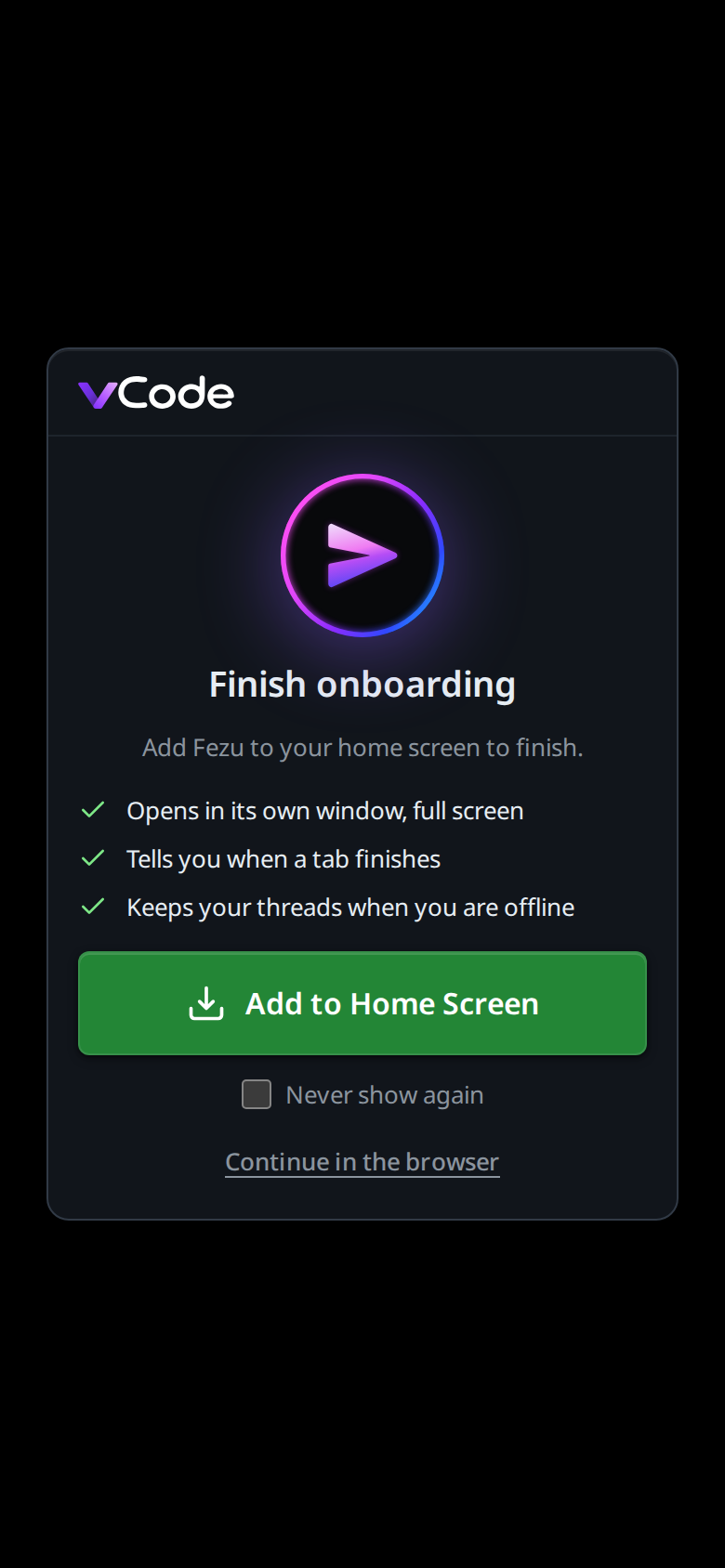
On a computer the screen does not open by itself. Click the install button (
#install, step 6) and it shows the command that installs the VCode desktop app (#is-command) and a Copy command button. Click it, then paste the command into PowerShell on Windows, Terminal on a Mac or a terminal on Linux. The command carries a sign-in code that works once, within 5 minutes, so the app opens signed in to your account (desktop-app).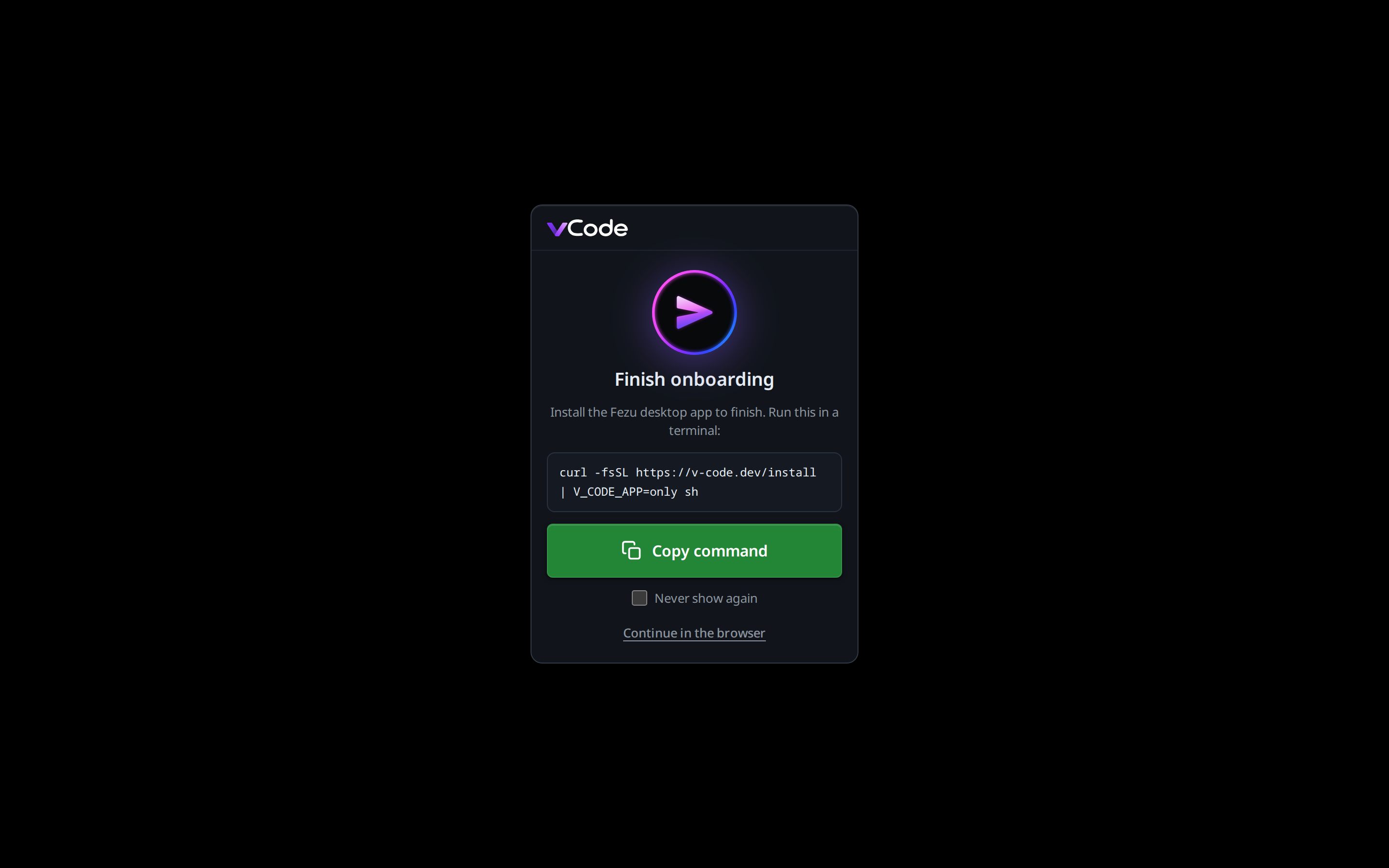
On Android Chrome the button opens the browser's install dialog. Accept it.
On an iPhone or iPad the button opens the Share sheet. Tap Add to Home Screen there. When the sheet closes, the screen shows
Tap Share, then Add to Home Screenunder the button, for a sheet that did not list it.Not now? Tap Continue in the browser (
#is-skip). The screen stays away for the rest of this visit and comes back on your next one. Tick Never show again (#is-never) first and it stays away on this device.Later, the install button (
#install) in the mode strip, the blue arrow just left of the bell and the cog, does the same install. On a computer it opens the Finish onboarding screen again, even after Continue in the browser. It is there until the app is installed, and never in the desktop app.
What you see
- After login, from the device's first visit, on a phone or tablet that can install and has not, the Finish onboarding screen covers the app. It comes before Pick an agent. On a computer it opens only from the install button.
- On a phone or tablet it is titled
Finish onboarding. It readsAdd VCode to your home screen to finish., listsOpens in its own window, full screen,Tells you when a tab finishesandKeeps your threads when you are offline, and has one button,Add to Home Screen. On an iPhone or iPad the button carries the Share mark. - On a computer it is titled
Finish onboarding. It readsInstall the VCode desktop app to finish. Run this in PowerShell:on Windows (Terminalon a Mac,a terminalon Linux), lists no reasons, shows the command, and its button readsCopy command. Before the click the command has no sign-in code; the click makes one and puts it in. - After the copy the line under the button reads
Copied. Paste it into PowerShell within 5 minutes.(the shell named as above). A clipboard that refuses givesSelect the command above and copy it into PowerShell within 5 minutes.When no sign-in code can be made, the command is copied without one, thewithin 5 minutesgoes, and the line endsCould not make a sign-in code (<reason>), so the app will ask you to sign in. - Where the browser has no dialog to open (Firefox on Android, Chrome after a dismissal), the button writes that browser's steps under it instead, the same words as the install button's toast.
- Accepting the dialog closes the screen. Declining leaves it open with the menu steps.
- The screen never shows in the installed app, in the desktop app or over plain http.
- In Chrome on a phone the screen waits for the browser's install offer. Chrome makes none in a tab once the app is installed, so a device that has the app sees no screen in the browser. The ⤓ button stays.
- The button is the ⤓ mark alone, in blue, drawn at 24px (bigger than the
marks beside it) with no chip, edge or label. It sits in the same slot family
as the
+, the folder and the cog. On a phone it sits in the mode strip with the folder, the bell and the cog. The name is in its title and aria-label:Install VCodeon a phone or tablet,Install VCode Desktop Appon a computer. - On a browser that offers an install, the tap opens the browser's own dialog. The app suppresses Chrome's separate install banner, so the button is the only prompt.
- On iPhone and iPad, in any browser, the tap shows
Tap Share, then Add to Home Screen. - On a computer the tap opens the Finish onboarding screen with the desktop app's command.
- In Firefox on Android it shows
Open the browser menu, then Add to Home screen. - In Chrome on Android with no offer (after a dismissal, or with the app
already installed and this page open in a tab) it shows
Open the browser menu, then Install app, or open it from the home screen if it is already installed. - Accepting the dialog shows the toast
installed: open it from your home screen, and the button disappears. - Declining shows
install dismissed. The button stays, and falls back to the menu steps until the browser offers the install again. - The installed app is called VCode: on the launcher, on the iOS
home screen, in the tab title, and in the app's
#app-idlabel beside the tabs. - Its launcher icon and browser tab show the VCode mark from the website: a pink arrow inside a pink-to-blue ring, on a black disc. The Android and iOS icons fill the corners with the same black, so the icon shows whatever shape the launcher crops to.
- It opens with no browser chrome (
display: standalone) on a dark background (#0a0d14). - In the installed app the button is gone: it hides on any
display-modebutbrowserand on iOS'snavigator.standalone.
Limits and known gaps
- https only. A service worker needs a secure context, so over plain http there is no button, no install, no offline shell and no notifications.
- A computer gets the desktop app, not a browser install. The screen no longer offers Add to desktop, Open in Edge, Copy link or Add to Dock. A web app already added to a computer's desktop keeps working, and the screen stays away inside it.
- On a box's own page there is no account to make a sign-in code for, so the command is copied without one.
- The dialog cannot be forced. Only Chromium fires
beforeinstallprompt, and only when it decides the app is installable; everywhere else the button can only tell you where your browser keeps the command. - iOS decides what the Share sheet lists. A page cannot add itself to the home screen, and a sheet the page opens may not list Add to Home Screen. Safari's own Share button always does, which is what the steps under the button point to.
- Without https, Chrome's "Add to Home screen" makes a plain shortcut: it opens in a tab, with the browser bar showing and no offline support.
Related
- open-the-app-offline: what the installed app does with no connection
- turn-on-notifications: on iOS this install is the prerequisite
- update-to-a-new-build: how a new build reaches an installed phone
- reach-it-from-a-phone: the https origin an install needs
- toasts: where
installed: open it from your home screenlands - desktop-app: what the command on a computer installs