
The tab bar
Tap Tabs (#tabs-open), or pull in from the left edge of the transcript,
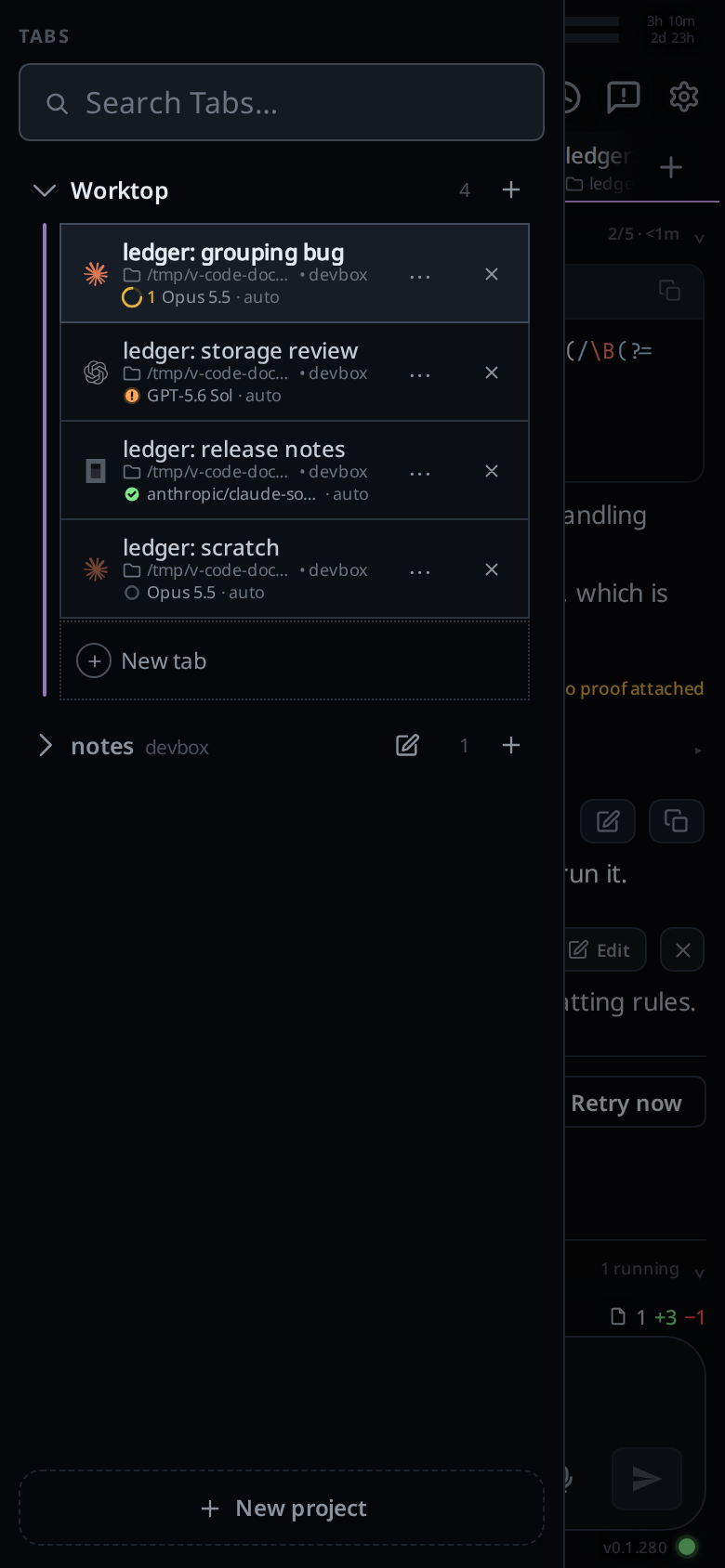
for the tab bar (#drawer): Worktop and your projects, each with
its open tabs under it. Pick a tab, close it, drag it somewhere else in its
project, switch project, or make a new one. On a window 1080px wide or more it
is a column on the left instead of a drawer.
Why you would use it
The strip shows only the active project's tabs, as small targets with short names. The tab bar shows every project, and each tab as a full-width row with its folder underneath (in Worktop), which is what you need to reach another project or a name too long for the strip.
How to use it
- Tap Tabs, or put a finger on the left tenth of the transcript and drag right. The panel follows your finger during the swipe.
- Release past about 36 px to open it; less snaps it shut. Tapping the icon opens it immediately. On a phone, opening the drawer hides the keyboard. Tap its search field to type again.
- Tap a row to go to that tab. A tab under another project switches you to that project too. The drawer closes behind you. On a phone the tab opens 200 ms after the tap, the time a second tap has to rename it instead.
 4. Tap a project heading's chevron (
.xchev) to open or close its list, or its
name (.wsname) to switch to that project. The heading's plus (.wsplus)
opens a tab in it, and so does the New tab row under an open project's
last tab (.wsnew). See projects.
5. Tap the cross (.wsclose) on a row to close that tab. With a mouse you can
also right-click the row and choose Close. To rename one, pick Rename
in its ⋯ menu, or double-tap or double-click the row. See
rename-a-tab.
6. Press and hold a row, then drag it up or down to reorder the tabs inside its
project. Hold a project's name to drag the whole project; Worktop stays first.
7. Type into the search field under TABS (#tab-search) to narrow the list
to the tabs whose name or messages match. See search-tabs.
8. Tap New project at the bottom (#drawer-new) to open the card in project
mode.
9. To put the drawer away, drag it back towards the left edge past about 70 px,
or tap the dimmed transcript beside it (#drawer-scrim), or press the
phone's back button.
What you see
A panel headed TABS, the search field under it, then one heading per project, Worktop first, and under
each open heading one strip-style row per open tab. A heading shows the
chevron, the project's name, its computer, a status dot while it is closed and
a tab in it works or waits, the pencil that opens Edit project (not on
Worktop), the tab count, its plus, and on an empty project other than Worktop
the Remove cross. An open project ends with a darker row outlined in dots: a
grey ring around a plus and New tab. An open project with two or more folders has one more line
under its heading: a folder mark and the folders' names joined by ·. Each row starts
with the agent's brand mark, as a strip tab does, then the tab's name
(its title, else its folder, else tab), and, in Worktop only, the shortened
full folder path under it, after a small folder mark and in a darker grey than the name, then · and the
machine the tab runs on: this box's name, or in the app the box's name on your
account, in bold, a shade lighter than the path. A third line says how the
tab is doing and who runs it: the status dot and background-agent count, the model (Opus 5.5, GPT-5.6 Sol, or auto
when the tab uses whatever the CLI is set to) and the effort after a · in the
darker grey (high, or auto when none is set). The selected tab has the strip's fill and colour bar. Removing the Rename
button gives the folder line more room; long paths still end in an ellipsis.
The tab you are in is highlighted. The transcript behind dims as the panel comes in, and one short vibration marks the moment the drawer commits.
Below 1080px of the frame's width the drawer is the same gesture at every width. From 1080px it is a 264px column on the left, under the row of buttons on top, with no scrim and no slide. Tabs then hides and shows the column and lights up while it shows; the choice is kept on this browser. See wide-layout.
Options and settings
| Option | Default | What it changes |
|---|---|---|
| edge zone | the outer 10% of the frame's width | Where a touch starts the drawer instead of a tab swipe |
| open distance | 36 px | How far in you must drag to open it |
| close distance | 70 px | How far back you must drag to shut it |
| axis slop | 9 px | Vertical drift before the touch is handed back to the scroller |
Limits and known gaps
- The Tabs button shows at every width. Below 1080 px it opens the drawer; click the dimmed area to close it. From 1080 px it is a switch for the column.
- A docked column refuses the edge gesture, and the back button does not close it.
- The drawer is a picker, not the manager. It has no folder move, closed-tab list or status line; those are in the strip or Threads sheet.
- While a row is being dragged the panel refuses to close out from under it.
- A finger that drifts more than 9 px down the screen before the drawer has picked its direction gives the touch back to the scroller, and the panel disappears again.
Related
- search-tabs: narrow the list by name or by what was said
- switch-tabs: the strip
- tab-status: the count on the Tabs button and the marks on each row
- reorder-tabs: the drag in full
- rename-a-tab: Rename in a row's ⋯ menu, or a double tap or click
- projects: what the headings are, Worktop, and New project
- threads-sheet: the manager with everything else
- file-explorer: the same drawer on the right edge
- wide-layout: the docked column
- back-button: the third way to put it away
- pin-snooze-done: the
⋯menu on a row, and the Done list - file-tabs: the file rows after a project's tabs on a wide window