
Projects and Worktop
A project is a name and one or more folders on one computer. The first folder is MAIN: every tab you open in the project starts there, and its agent is told about the other folders. The window shows one project at a time: the strip, the swipes and the panes hold only its tabs. Worktop is the project that is always there. It holds every tab you start outside a project, from any folder on any computer.
Why you would use it
You work on several repos at once, each with a handful of tabs. With every tab
in one strip, the tabs you need sit among tabs you do not. A project keeps one
piece of work's tabs together, and its + opens a tab in MAIN straight away,
with the agent you used there last. When the work spans repos, say an app and
the server it talks to, one project holds both folders, and the agent knows
where the other repo is.
How to use it
The tab bar
Tap Tabs (
#tabs-open), or pull in from the left edge of the transcript. The tab bar (#drawer) lists Worktop first, then your projects, each with its tabs under it.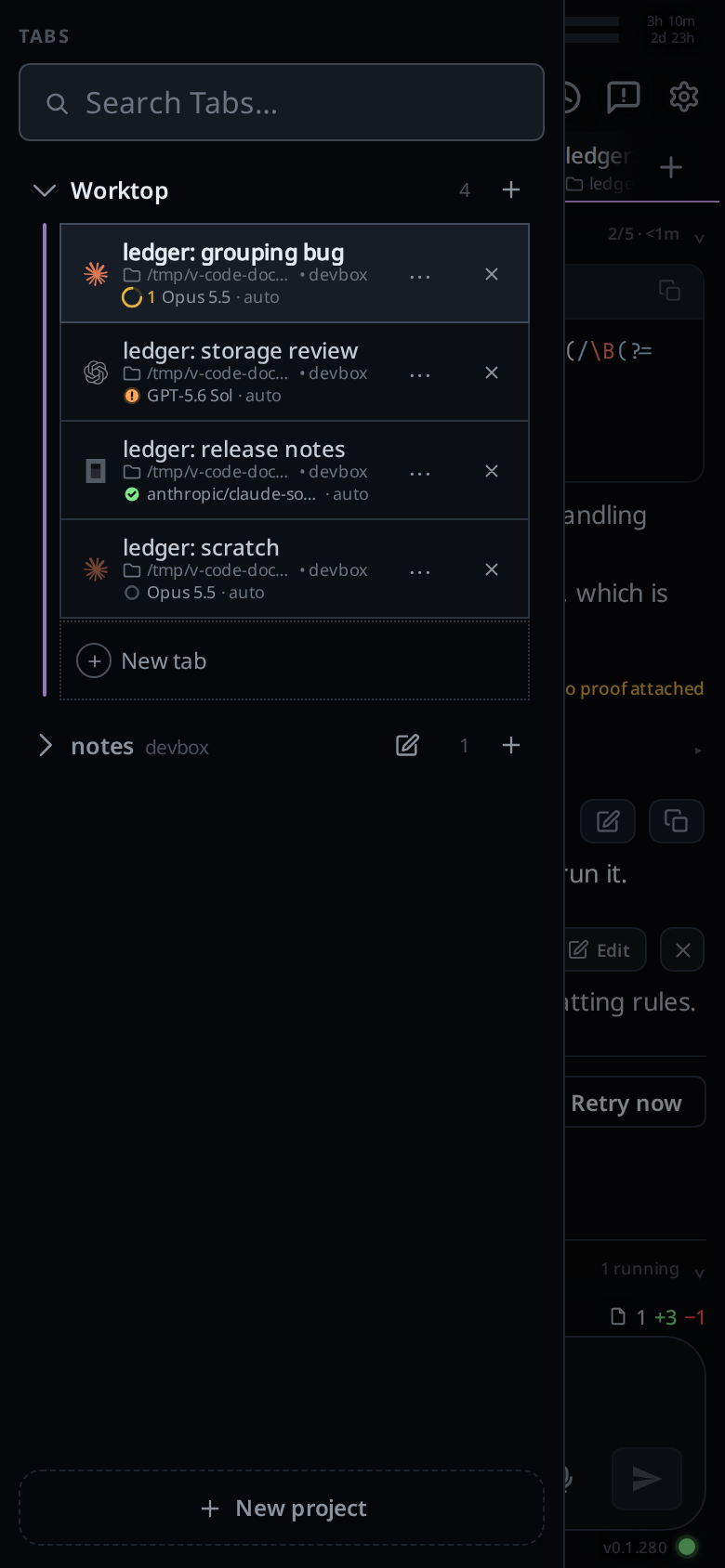
Tap the chevron (
.xchev) on a heading to open or close that project's list. Until your first tap on a chevron, the active project is the one shown open. From then on, which projects are open is kept on this device, and does not change when you switch project.Tap a project's name (
.wsname) to switch to it. You land on the tab you last had open there, else its first tab. With a keyboard, Ctrl+Shift+PageDown and Ctrl+Shift+PageUp go to the next and previous project in the tab bar's order, Worktop first, and wrap at both ends.Tap a tab under another project to switch to that project and that tab in one step.
On a wide window, drag the tab bar's right edge to make it wider or narrower. Double-click the edge to put the width back.
Make a project
- Tap New project (
#drawer-new) at the bottom of the tab bar. The card (#newthread) opens headedNEW PROJECT, with the folder field open and no agent pick. - In the app, pick the computer (
.new-box). Picking another computer empties the folder list, since those folders are on the old one. - Type or pick a folder in the field (
.new-cwd) the way you do for a new thread: tap a row of its list, press Enter, or browse with the folder button. The folder joins FOLDERS (.project-folders) and the field closes. A folder still in the field when you tap Create project joins too. - To add another folder, tap Add folder (
.project-add) and pick again. - The first folder is MAIN, marked with a blue star and
Main(.project-main, titledNew tabs start here). Tap the empty star, Make main (.project-make-main), on another folder to move it to the top. Tap the cross (.project-drop, titledRemove folder) to take a folder out. The last folder has no cross. - NAME (
.project-name) fills with MAIN's folder name and follows MAIN until you type in it. Type your own name to keep it. - Tap Create project (
.new-thread), or press Enter in NAME. A toast readscreating project…while the computer makes it.
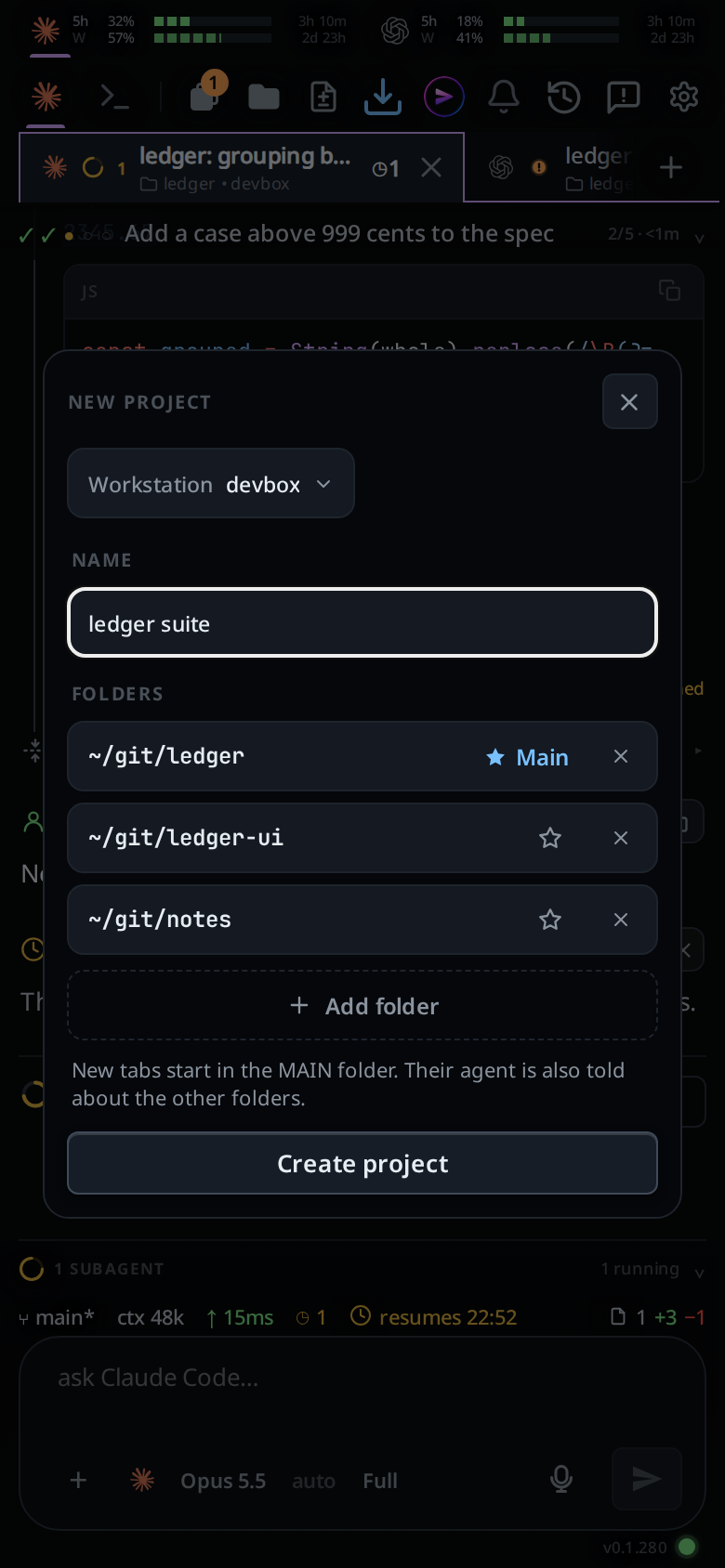
The card closes and the new project becomes the active one, open on its empty page. A new project goes to the end of the tab bar.
Each folder you add is taken to its repo: a worktree or a subfolder of a repo becomes the repo's main checkout. A folder outside git stays as it is. Two folders that land on the same repo count once. The same folder can be in several projects. Two projects with the same set of folders, in any order, cannot both exist.
Edit a project
- Tap the pencil (
.wsedit, titledEdit project) on the project's heading. The tab bar closes and the card opens headedEDIT PROJECT, holding the project's name and folders. - Rename it, add folders, remove them, or tap the empty star (Make main) to change MAIN. The computer is shown but cannot be changed: a project stays on its computer.
- Tap Save. A toast reads
saving project…and the card closes when the computer has the change.
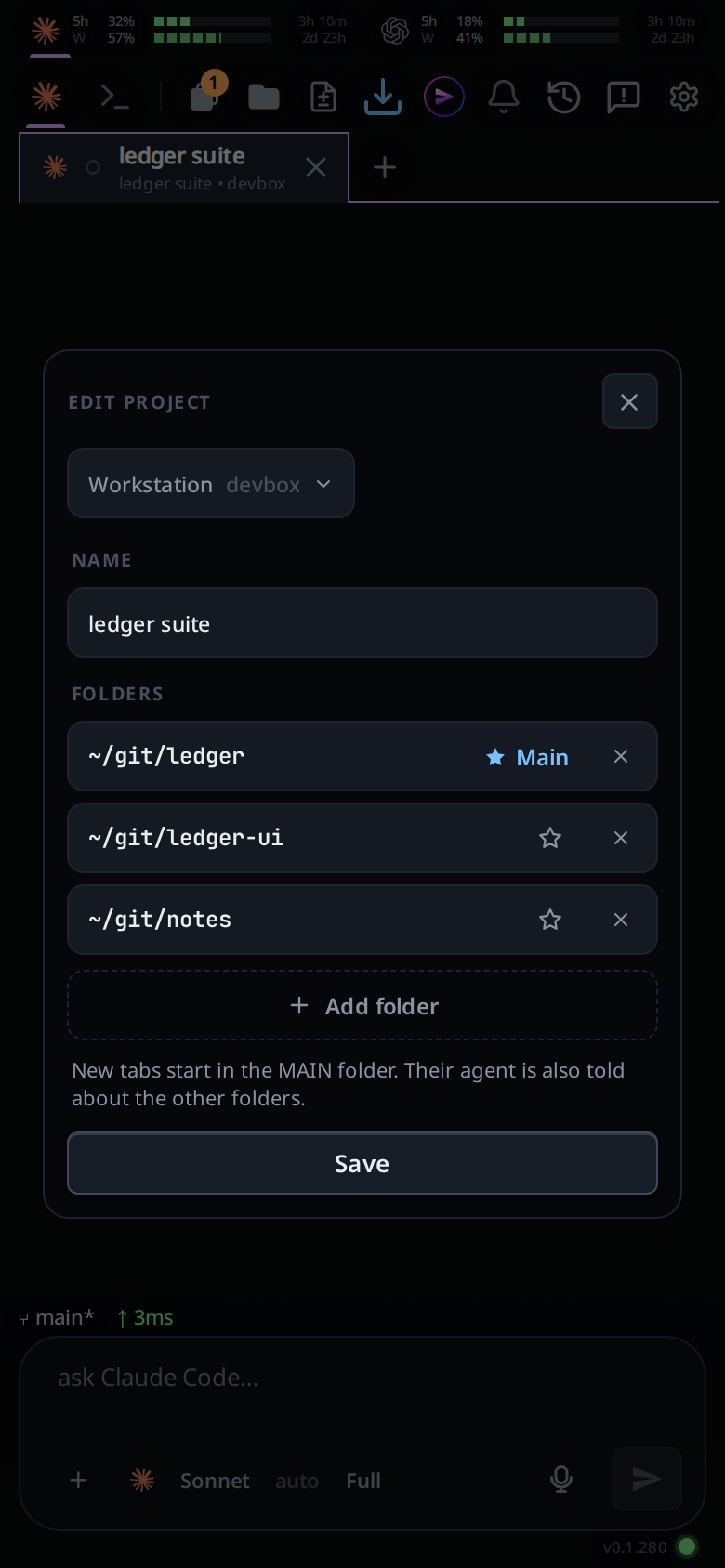
Tabs already open keep the folder they started in. A new MAIN applies to the next tab you open, and a folder you add reaches each agent the next time it starts.
Open a tab
- In a project, every
+opens a tab at once, with no card: the strip's plus (#new-tab), a pane header's plus, the plus on the project's heading (.wsplus), the New tab row at the bottom of an open project in the tab bar (.wsnew), andCtrl+TorCtrl+N. The page past either end of the strip is an empty tab instead: it is made when you send its first message (swipe-between-tabs). The tab works in the project's MAIN folder on the project's computer, with the agent, model and effort the last tab started in that project was last set to. When that agent is logged out or gone, or the project has had no tab yet, the tab gets the agent the card would pick. - When no agent on that computer can start one, because none is installed yet
or every one is logged out, the
+opens theNEW THREADcard on the project's computer instead, with MAIN in the folder field. Install or log in to an agent from its pick (install-an-agent), then tap Start thread: the tab joins the project. Pick another computer in the card and the tab goes to Worktop. - The new tab is named after the project. After your first message, automatic naming names it from what you asked, as it does a tab named after its folder. A name you gave the tab yourself stays.
/newwith no folder is the same as the project's+./new <folder>opens a Worktop tab in that folder instead, and switches you to Worktop. See new-tab-command.- In Worktop, the same pluses open the new-thread card headed
NEW THREAD. Start thread starts a Worktop tab in the folder you pick. See start-a-thread. - A new tab goes to the end of its project.
Reorder and remove
- Hold a tab row and drag it up or down. It moves inside its project only. The strip and a pane's strip reorder the same way. See reorder-tabs.
- Hold a project's name and drag the heading to move the whole project. Worktop stays first and does not drag.
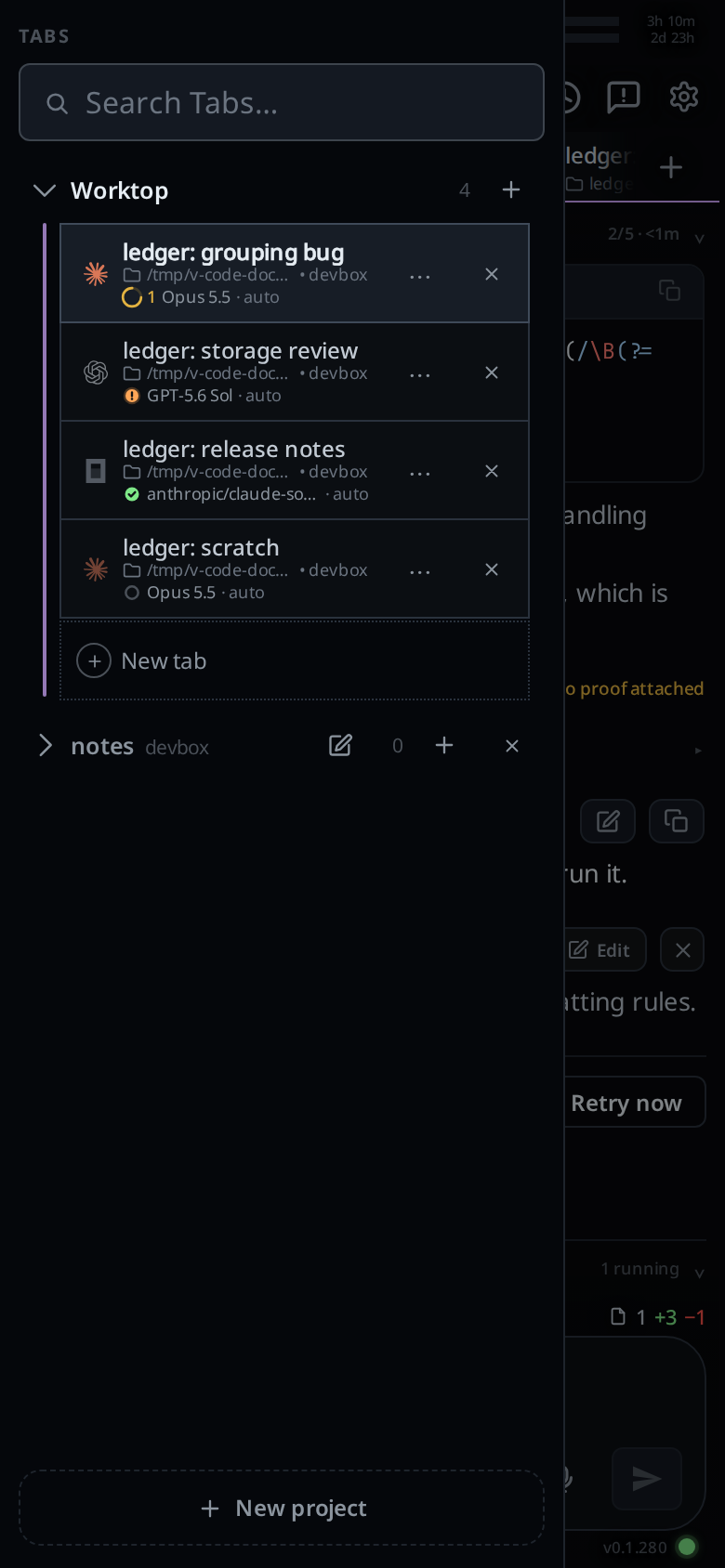
- A project stays when you close its last tab. Its heading then carries a
cross (
.wshead .wsclose, titledRemove project). Only an empty project can be removed, and Worktop never can. A done tab is still open, so a project holding one has no cross. - Tap the cross. A popup (
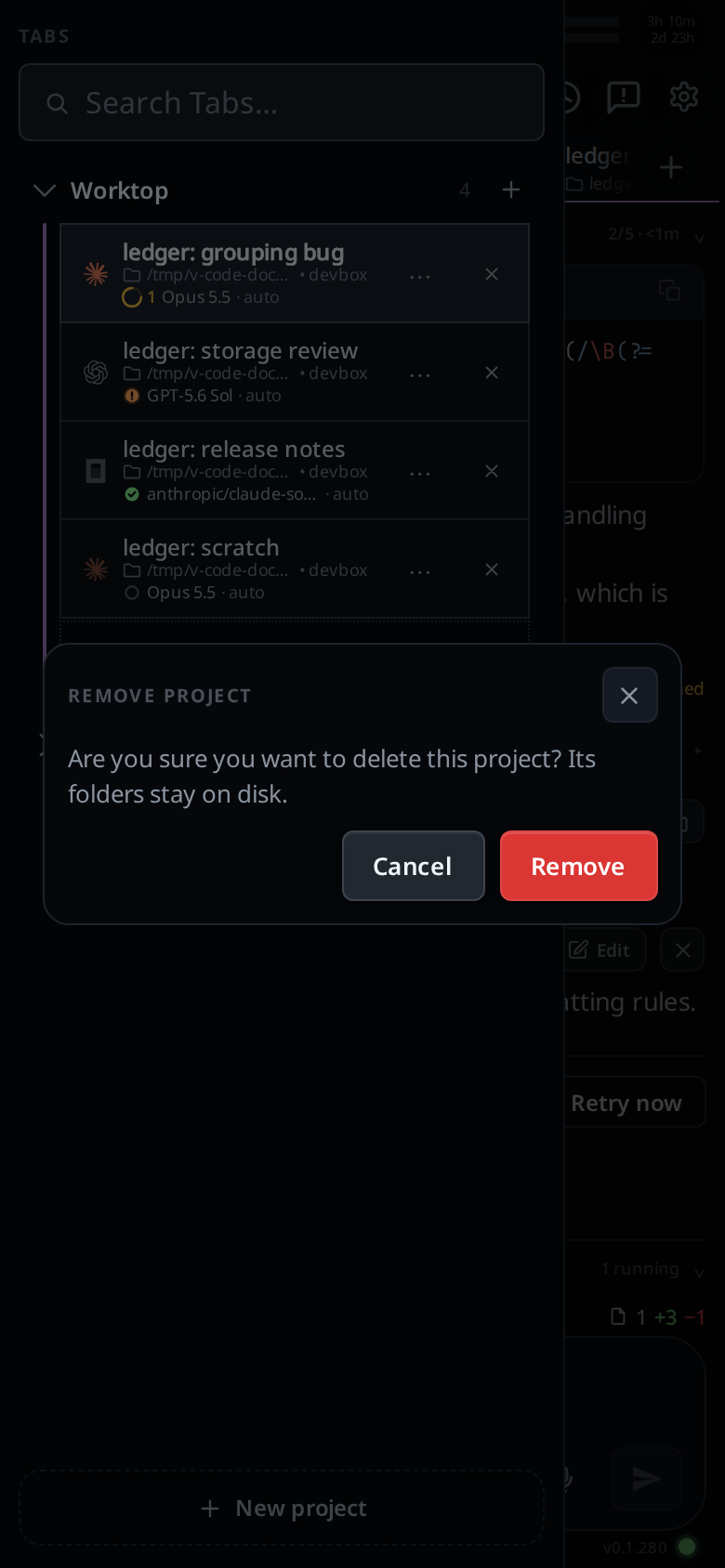
#confirm) titledREMOVE PROJECTasksAre you sure you want to delete this project? Its folders stay on disk.Tap Remove (#confirm-go) to remove the project. Cancel (#confirm-cancel), a tap outside the popup, back or Escape keep it.
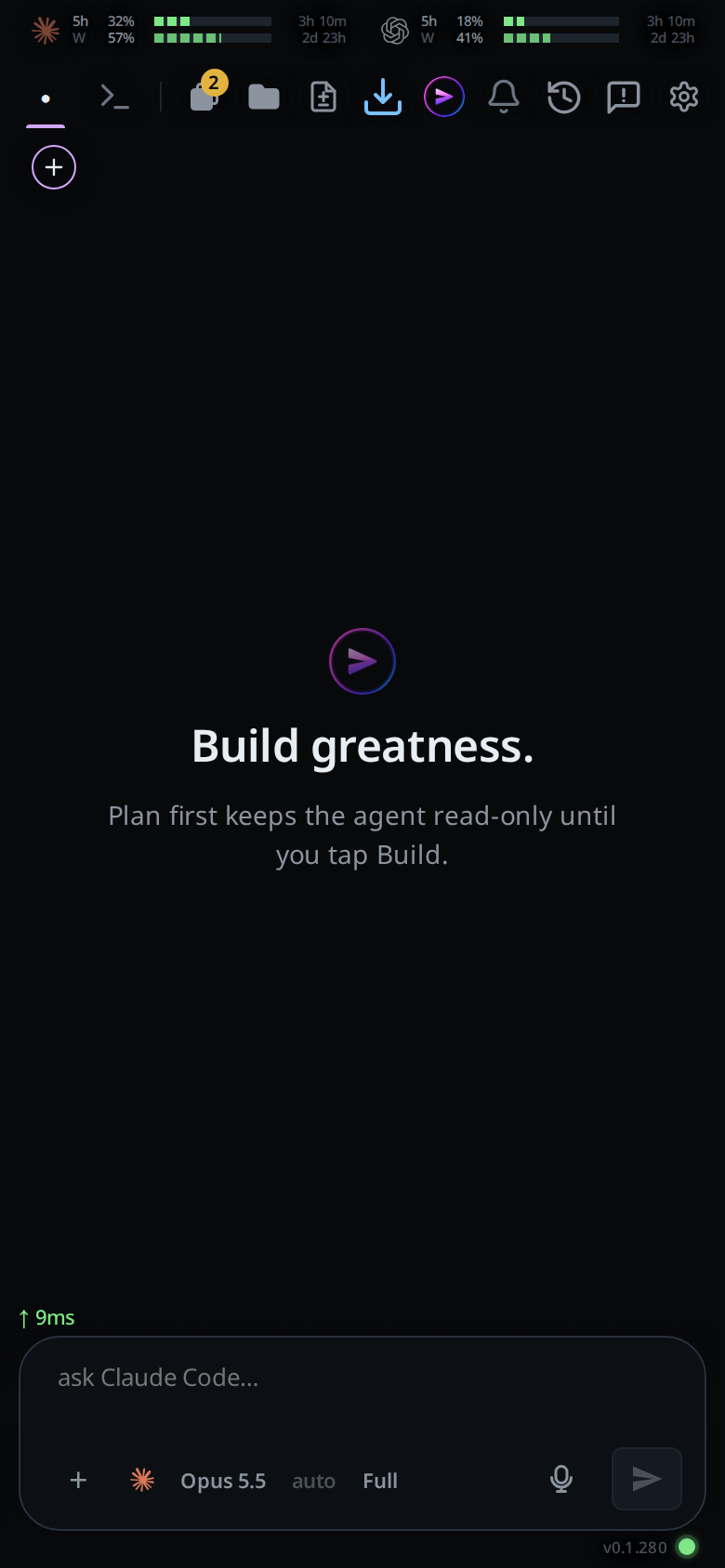
An empty project
Switch to a project with no tabs, and the window shows an empty tab: a welcome line over the message box. Send a first message and the tab is made in the project's MAIN folder.
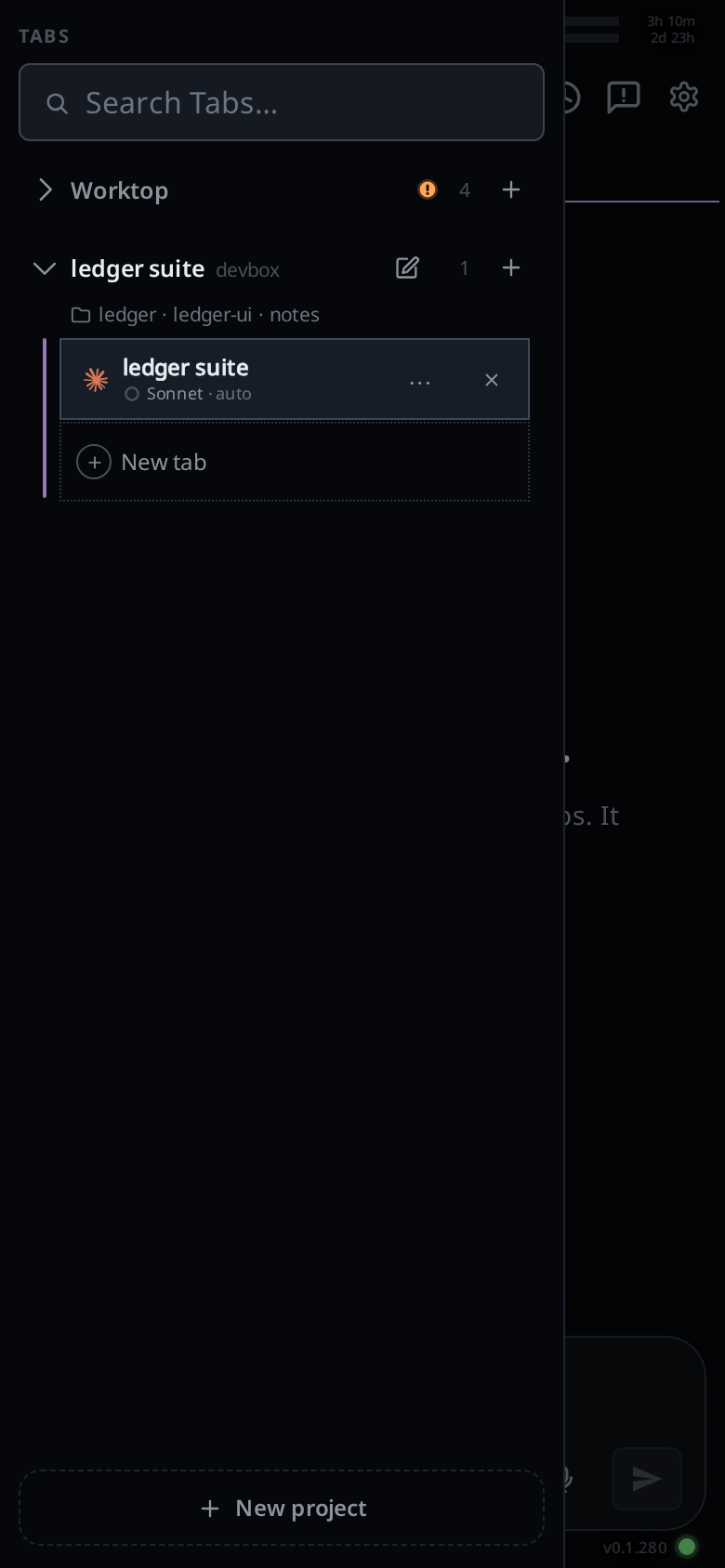
What you see
Each heading shows, left to right: the chevron, the project's name, the computer it is on, a status dot while the project is closed and one of its tabs is working or waiting on you, the pencil, the number of tabs, and the plus. The active project's name is brighter than the others. Worktop's heading names no computer, since its tabs can be on any of them, and has no pencil.
An open project's tabs sit set in from both edges, with a thin rail on the left under the heading's chevron. The rail shows which tabs belong to that project. It is grey, and violet for the active project. Worktop has one too.
Under the last tab of an open project, Worktop included, sits a darker row with
a dotted outline: a grey ring around a plus, and New tab where the tab names
start. It does what the heading's plus does, so you can start a tab from the
top or the bottom of the list. It does not drag and is not counted.
While a project is open in the tab bar, a line under its heading
(.wsfolders) shows a folder icon and its folder's name. A project with two or
more folders lists each one, MAIN first, joined with ·. A long line ends in
an ellipsis.
A project tab's row in the tab bar shows its name and its agent and model, with no folder line: the project already says where it runs. A Worktop tab's row keeps its folder. In the strip, a project tab's second line is the project's name, with no folder icon; a Worktop tab's is its folder, after the icon. The Threads sheet has no folder button on a project tab's row, since a project tab does not move to another folder.
On a fresh device only the active project is open in the tab bar.
The window shows the active project's tabs and nothing else. The strip, swipes, the end pages past either end, and the tab that takes over when you close one all stay inside the project. A tab belongs to the project it was started in. A Worktop tab stays in Worktop even when its folder is in a project.
On a wide frame, each project keeps its own pane layout. Switch project and the panes swap. Switch back and you get the same splits, the same tabs in each pane, and the same focused pane. A project you have not split yet starts as one pane.
From 1080px of the frame's width, the tab bar is a column on the left, 264px wide, under the row of buttons on top. Drag its right edge to set it between 200 and 480px; double-click the edge for 264px again. The width is kept on this browser. Tabs then hides and shows the column, and lights up while it is showing. The choice is kept on this browser. Below 1080px Tabs opens the tab bar as a drawer.
The agent in a tab of a project with two or more folders is told the project's name and every folder's full path, with the one it started in marked, each time it starts. See what-the-agent-is-told.
Messages you may see:
Update VCode on this computer to use projects: the computer runs a release that cannot do this. On a release from before projects, Create project says it, and that computer's tabs all show in Worktop. On a release from before projects had several folders, Create project with two or more folders says it, and its projects have no pencil. The card stays open with its folders, so you can pick another computer.pick a folder: Create project or Save with no folder in the list and none in the field.these folders are on another workstation: pick them again: the computer the folders came from stopped accepting this device while the card was open, and the card moved to another one. The card stays open.no such folder: <path>: a folder does not exist, or MAIN was deleted since the project was made and a new tab cannot start there.already a project: <name>: another project on that computer has the same folders. The card stays open.a project name is at most 80 charactersa project needs a folderno agent to start on <computer>: a+in a project before the app has that computer's list of agents.close the project's tabs before removing it: the project got a tab on another device before your Remove arrived.
Options and settings
| Option | Default | What it changes |
|---|---|---|
| Name | MAIN's folder name | The heading's name and each new tab's name. 80 characters at most. Left empty, MAIN's folder name |
| Folders | One at least. MAIN, the first, is where new tabs start. Every folder is named to the agent when there are two or more | |
| Project order | the order the projects were made | Drag a heading to change it. Kept on this device; each computer also keeps the order of its own projects |
| Open projects | the active project | Which headings show their tabs. Kept on this device |
| Active project | Worktop | The project the window shows. Kept on this device with the tab last open in each project |
| Tab column (1080px and up) | shown | Tabs hides and shows it. Kept on this browser |
| Tab column width | 264px | Drag its right edge, 200 to 480px. Double-click the edge to reset. Kept on this browser |
Limits and known gaps
- A project is on one computer. Its folders are all on that computer.
- A project tab always starts in MAIN. To start a tab in another of the
project's folders, make it MAIN first, or use
/new <folder>, which opens a Worktop tab. - A project tab cannot move to another folder. Tabs already outside MAIN stay where they are and cannot move either: a tab started before projects had several folders, a tab moved before this, or a session you resumed into the project from the Threads sheet.
- A tab cannot move between projects yet, and neither between Worktop and a project.
- Cursor is not told the project's folders. Claude, Codex and OpenCode are.
- A running agent learns about a folder you add only the next time it starts.
- The phone has no strip of projects. Switch from the tab bar.
- Nothing makes a project for you. Tabs you had before projects, and tabs an agent or the CLI starts, are in Worktop. A session you resume from the Threads sheet opens in the active project.
- A reopened tab whose project was removed shows in Worktop, and moves to another folder like any Worktop tab.
- The Threads sheet lists every tab, not grouped by project.
Related
- tab-drawer: the tab bar's gesture and rows
- start-a-thread: the card, in Worktop and for a new project
- switch-tabs: the strip, which shows the active project
- swipe-between-tabs: swipes stay inside the project
- reorder-tabs: reordering inside a project
- new-tab-command:
/newin a project - thread-working-folder: moving a Worktop tab's folder
- rename-a-tab: the name a project tab gets after its first message
- what-the-agent-is-told: the folder list the agent gets
- close-and-reopen-tabs: who takes over inside the project
- split-panes: one layout per project
- wide-layout: the docked tab column
- work-on-several-boxes: projects on several computers
- agent-commander: the one assistant behind the top bar's VCode icon, which starts tabs in any project
- install-an-agent: the card a project's
+opens when no agent can start