
Change keyboard shortcuts
Give any of VCode's keyboard shortcuts a key of your own, or take its key away. Your keys follow your account to every workstation.
Why you would use it
A shortcut clashes with one your browser, your desktop or your hands already use, or you want a key for something you do often, such as dictating. Change it once in settings and every computer you use VCode on has it.
How to use it
Open settings with the cog (
#settings-open). Under Keyboard shortcuts (#settings-keys), press Edit shortcuts (#keys-open).
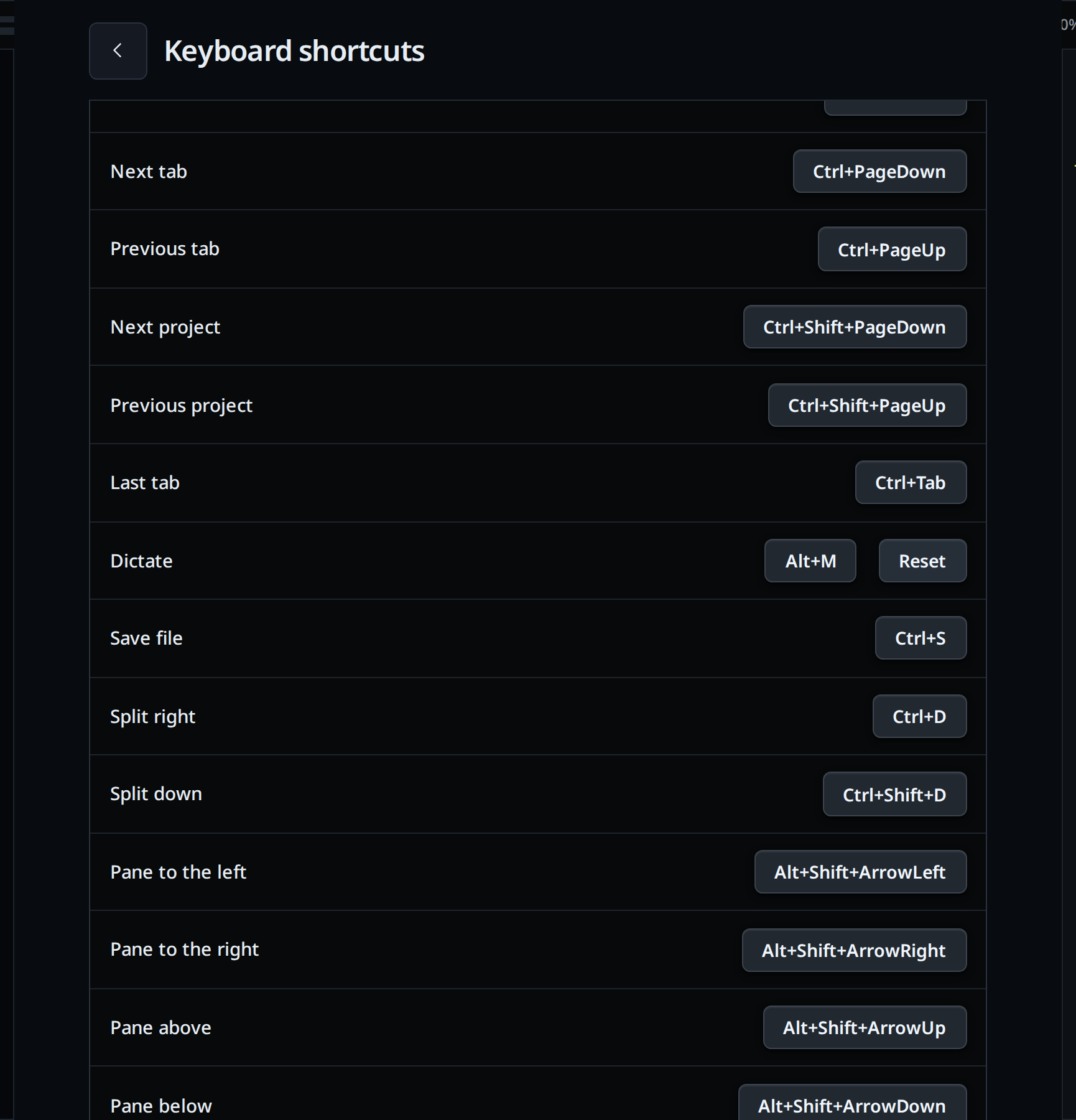
The Keyboard shortcuts screen (
#keys-screen) opens over settings, a row per command. Click the key shown on a row. It reads Press keys….Press the new keys, such as Alt+M. The row saves at once and shows the new key.
To give the command no key, press Backspace instead. To leave it as it was, press Escape or click somewhere else.
A row you changed has a Reset button. It puts back the keys the command had by default.
The back arrow (
#keys-screen-back) or Escape goes back to settings.
What you see
- Each row shows the command and its keys, written the way your computer writes them: "Ctrl+Shift+M" on Linux and Windows, "⇧⌘M" on a Mac. A command with two keys shows both, joined by "or". One with no key shows None.
- The Commands title on the screen says Saving… and then Saved.
- Keys that need Ctrl, Cmd or Alt and are pressed without one show "Add Ctrl, Cmd or Alt" in the title, and recording goes on.
- A key another command had moves to the one you are changing. A toast says so: "Alt+S moved from Split right". The other command keeps its other keys, or shows None.
- The tooltips on the split, files, new thread, Resume…, zoom pane and mic buttons name the new key.
Options and settings
These are the commands and their default keys. Mod is ⌘ on a Mac and Ctrl everywhere else.
| Command | Default |
|---|---|
| New thread | Mod+T, Mod+N |
| Files | Mod+P |
| Resume | Mod+O |
| Close tab | Mod+W |
| Reopen closed tab | Mod+Shift+T |
| Rename tab | Mod+Shift+R; Mod+R in the desktop app |
| Next tab / Previous tab | Ctrl+PageDown / Ctrl+PageUp. A Mac also has ⌥⌘→ / ⌥⌘← and ⇧⌘] / ⇧⌘[ |
| Next project / Previous project | Ctrl+Shift+PageDown / Ctrl+Shift+PageUp, on a Mac too |
| Last tab | Ctrl+Tab, on a Mac too |
| Dictate | Mod+Shift+M |
| Save file | Mod+S |
| Split right / Split down | Mod+D / Mod+Shift+D |
| Pane to the left, right, above, below | Alt+Shift+arrow; ⌃⌘+arrow on a Mac, where ⌥⌘↑ and ⌥⌘↓ work too |
| Maximise pane | Alt+Enter, on a Mac too |
| Terminal | Ctrl+`, on a Mac too |
| Pane keys | Ctrl+B, on a Mac too, then %, ", an arrow, o, z or x |
| Zoom in / Zoom out / Zoom to 100% | Mod+= or Mod++ / Mod+- or Mod+_ / Mod+0 |
A key needs Ctrl, Cmd, Alt or Mod, unless it is an F key (F1 to F12). Each command takes up to four keys.
You can also set a key from a thread: v-code settings set keys.mic Alt+M, or a
list such as v-code settings set keys.new-tab '["Mod+T","Mod+N"]'. null
puts back the default and [] removes every key. Spell the keys as in the table:
modifiers and then the key, joined by +.
Limits and known gaps
- The key after the pane keys' prefix (
%,", an arrow,o,z,x) is fixed. Only the prefix itself can move. - In Safari or Chrome on a Mac, ⌥⌘← and ⌥⌘→ and ⇧⌘[ and ⇧⌘] switch the browser's own tabs. They move between VCode's tabs in the installed app.
- A few keys never reach a web page in a normal browser tab, such as Ctrl+T, Ctrl+N and Ctrl+W. They work in the installed app. Pick another key if you use VCode in a tab.
- Rename tab is Mod+R only in the desktop app. A browser keeps Ctrl+R for its reload, so there the default is Mod+Shift+R, which takes the place of the browser's hard reload. A key you set yourself is the same in both.
- In the Shell mode terminal, Ctrl and a letter on its own goes to the shell, whatever you bind it to.
- The keys of the message box (Enter, Shift+Enter, ↑ and ↓ for the prompt history, Escape) and of the file editor do not move.
- With several workstations open, the page uses the keys of the one whose settings it read last.
- Keys you change on one computer reach a page already open on another when that page reloads or opens settings.
- Letters match the key's place on the keyboard, not the letter your layout
types there: on Dvorak, Ctrl+B is the key that types X. The
[and]keys work the same way. - A key you set by editing
settings.jsonby hand takes effect when VCode next starts. Keys set in the card or withv-code settings settake effect at once. - On Android and iOS, iPads included, settings has no Keyboard shortcuts group. Keys set elsewhere still work there with a keyboard attached.
Related
- Navigation and commands: every key and what it does
- Dictate a message: what the mic does
- Synced settings: which settings follow the account