
An agentic IDE on iPhone and Android
An agentic IDE on iPhone and Android does not run the agents on the phone. Coding agents such as Claude Code install on a Linux PC, a Windows PC or a Mac, so they run there, next to your code, and the phone is the screen. Fezu works this way on iPhone, iPad and Android: you open app.fezu.dev in the browser, with nothing to get from the App Store or Google Play, and add it to your home screen.
For what the term means, read What is an agentic IDE? and Mobile agentic IDE: what it is and what it needs.
How it works
You install Fezu on your own Linux PC, Windows PC or Mac. The agents run there: Claude Code, Codex, Cursor, OpenCode, Copilot, Devin, Junie, Antigravity or Muse. On the phone you open app.fezu.dev and log in with the same email. So the AI IDE on your iPhone or Android phone is a web app, and the work happens on a computer you own. One account links the two, and every computer on the account shows up as tabs in one strip.
The computer connects out to the Fezu router, so you open no port on your home router. The phone reaches the computer over an encrypted channel that the router only forwards. The conversations stay on your computer.
To set up a particular agent, see A mobile IDE for Claude Code, Codex and OpenCode.
Set up the agentic IDE on iOS: iPhone and iPad
- Open app.fezu.dev in Safari.
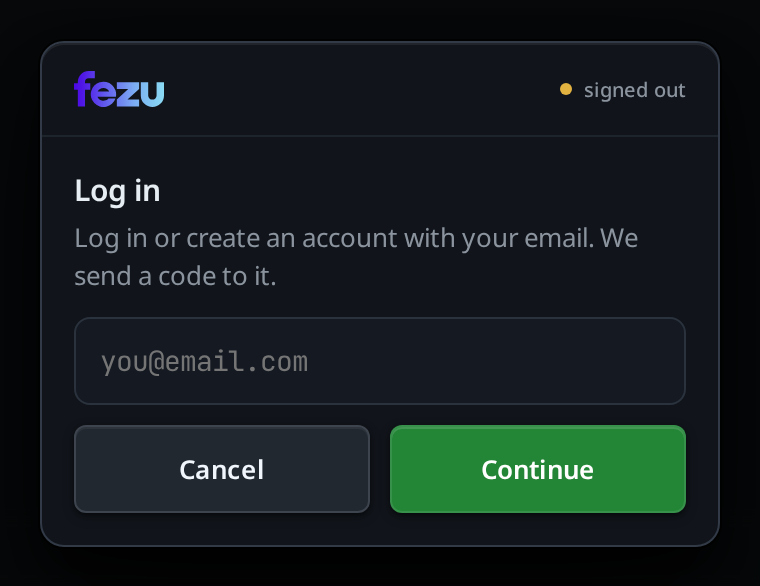
- Type your email and tap Continue. Type the code fezu.dev emails you. The site sends you back to the app.
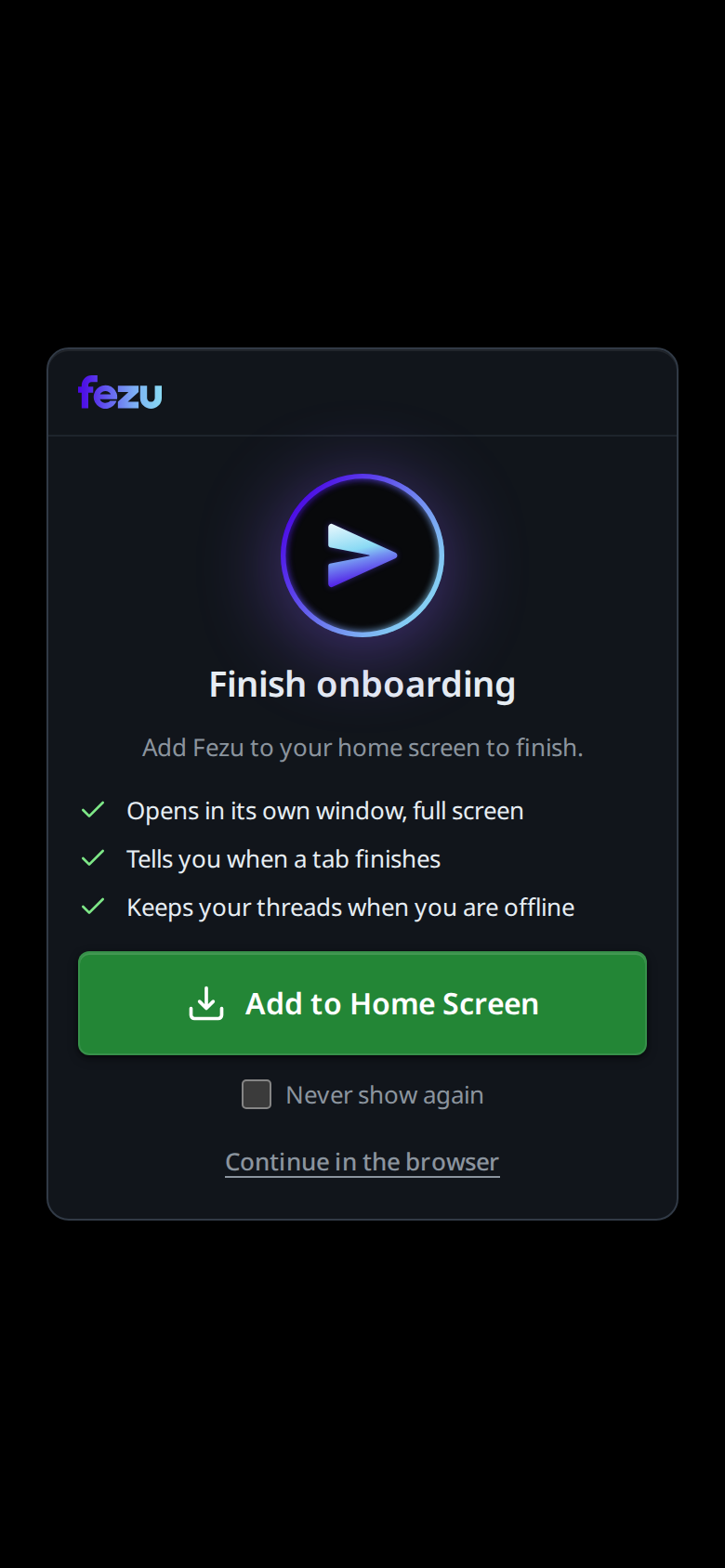
- The Finish onboarding screen opens. On an iPhone or iPad it has no Add to Home Screen button, because a web page cannot add itself to the iOS home screen. It shows the steps for your browser instead:
- Safari on an iPhone: "Tap Share (under ⋯ in Safari's toolbar on iOS 26), then Add to Home Screen"
- Safari on an iPad: "Tap Share at the top right of Safari, then Add to Home Screen"
- Chrome: "Tap Share in the address bar, then Add to Home Screen"
- Firefox: "Open the menu, tap Share, then Add to Home Screen"
- Edge and other browsers: "Tap the browser's Share button, then Add to Home Screen"
- Open Fezu from its new icon on the Home Screen. It opens in its own window, with no address bar.
Notifications. On iOS a web app can ask to send notifications only after it is on the Home Screen, from iOS 16.4. Open Fezu from its icon, tap the bell (Notify when a tab finishes) and allow notifications. The toast reads notifications on for this device. In a Safari tab the bell answers add to the home screen first, then turn notifications on. On an older iOS it answers this iOS version has no web push; iOS 16.4 or newer is needed.
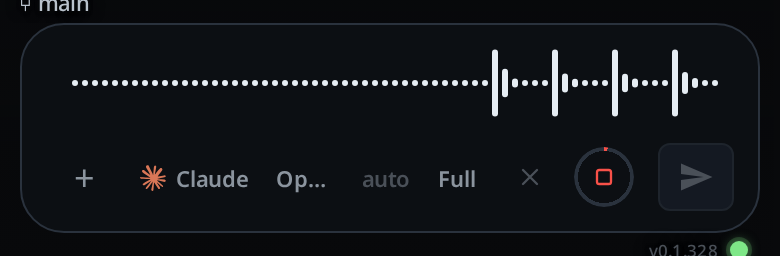
Dictation. The mic sits in the message box, left of send. The first tap asks for the microphone. Talk, then tap again, and your words land in the box for you to edit and send. If you refused the microphone, the toast reads microphone permission denied. Fezu does not ask again. Allow the microphone for the site in the browser's settings and tap once more. The mic shows only when the tab's computer runs Linux with Fezu's transcription service installed, and it hears English only.
Set up the agentic IDE on Android
- Open app.fezu.dev in Chrome. Type your email, tap Continue and type the code fezu.dev emails you.
- The Finish onboarding screen opens. Tap Add to Home Screen. Chrome opens its install dialog. Accept it, and the toast reads
installed: open it from your home screen. - Open Fezu from the home screen. It opens full screen, with its own icon.
If Chrome makes no install offer, for example after you dismissed one, the button shows Open the browser menu, then Install app, or open it from the home screen if it is already installed. In Firefox on Android it shows Open the browser menu, then Add to Home screen.
Notifications. In Chrome on Android the bell works in a browser tab too. Tap it, allow notifications, and the phone buzzes when a tab finishes or stops for a question or an approval.
The back button. Android's back closes the top thing that is open, one press at a time: the keyboard, a screenshot, a file, the diff, a sheet, the tab drawer, the shell. With nothing open, back leaves the app.
Tap feedback. In Chrome on Android each tap on a button, a tab or a menu row gives one short vibration.
What works where
| iPhone and iPad, Safari | Android, Chrome | Desktop browser | |
|---|---|---|---|
| Add to the home screen | Yes, from Safari's Share button. Fezu shows the steps | Yes. Add to Home Screen opens Chrome's install dialog | No. The install button gives the command for the Fezu desktop app |
| Notifications when a tab finishes or needs you | Only from the Home Screen app, on iOS 16.4 or newer | Yes, in a tab or installed | Yes in Chrome or Firefox. The desktop app gets them while it runs |
| Dictation | Yes, when the tab's computer runs Linux with the transcription service. English only | Same as iPhone | Same as iPhone |
| Open the app offline and read your threads | Yes, after one visit online | Yes, after one visit online | Yes, after one visit online |
| Queue a message offline | Yes. It sends when the computer is back | Yes | Yes |
| Swipe between tabs | Yes, in the phone layout | Yes, in the phone layout | No. Touch only; click a tab instead |
| Vibration on tap | No | Yes | No |
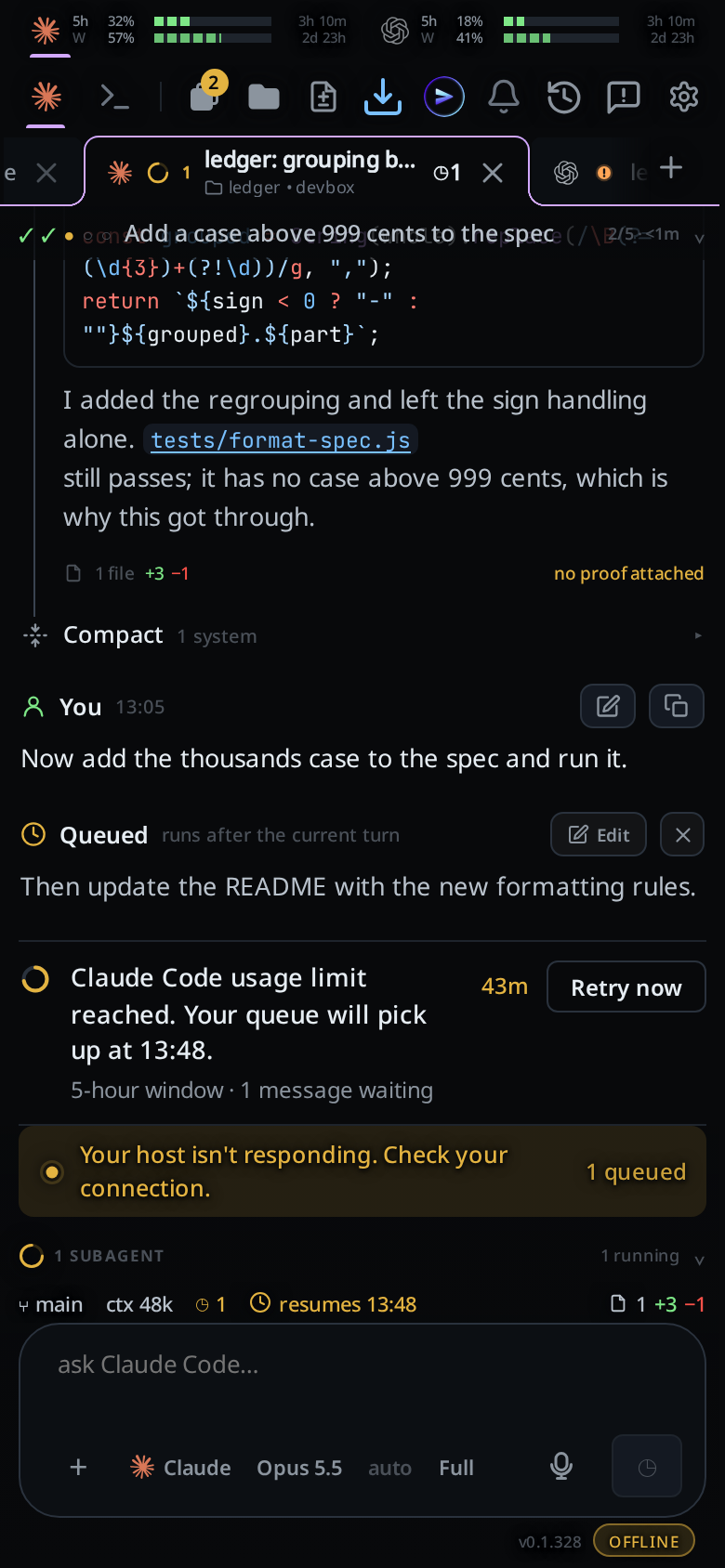
Offline, the app opens to your last thread with its history. A banner at the bottom reads Your host isn't responding. Check your connection. A message you send then waits on the phone with the toast offline: queued in outbox, and goes out by itself when the computer answers again.
Tablets and wide screens
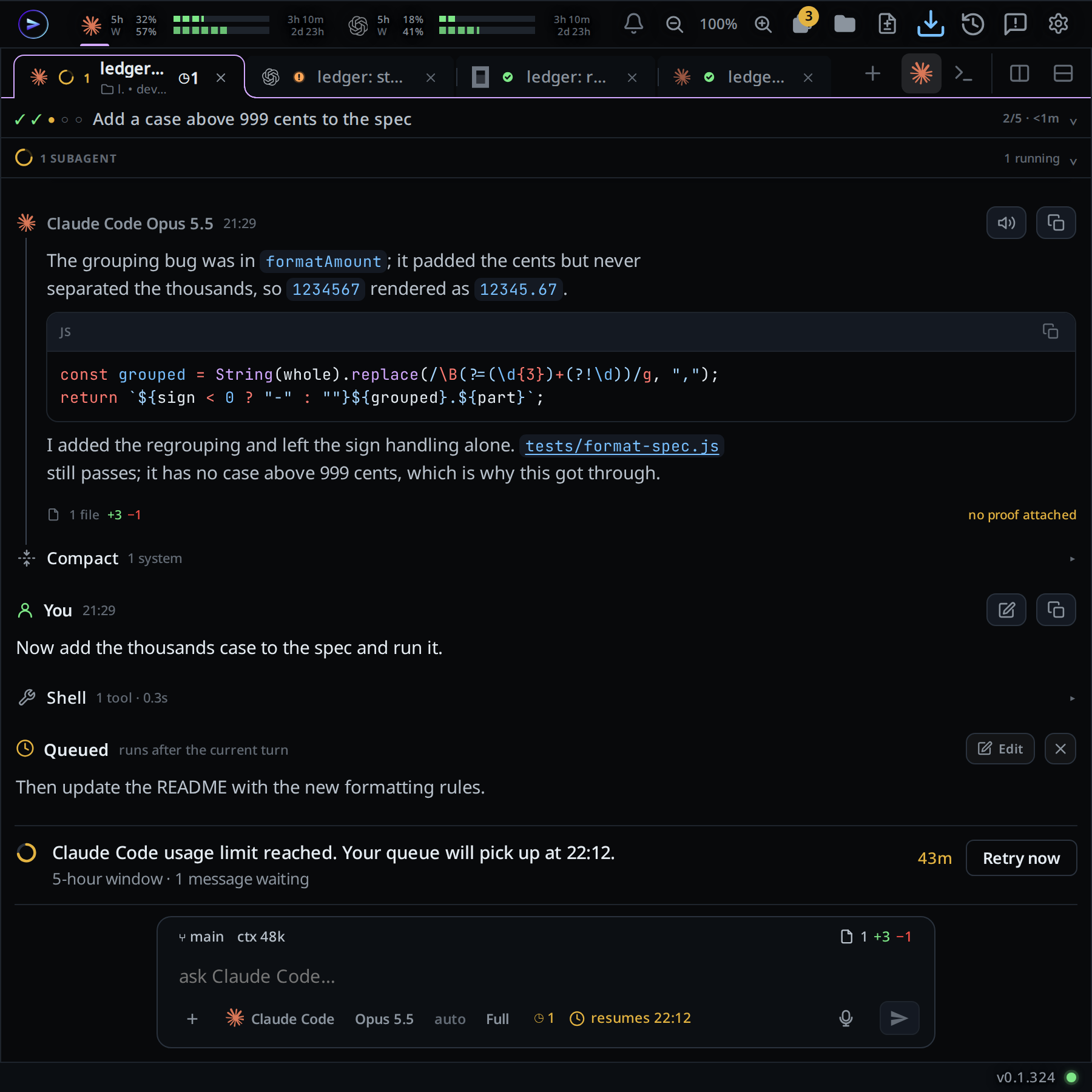
On an iPad or an Android tablet the app changes layout with the window width. Below 760 pixels you get the phone layout. From 760 pixels the conversation moves into a pane with its own header and its own tabs, and the top of the screen becomes one row of meters and buttons. Split right and Split down in a pane's header open more panes, up to six across and six down, each with its own tabs.
From 1080 pixels the tab list becomes a column on the left instead of a drawer. From 1360 pixels the file explorer docks on the right as well. With the tab column hidden, the explorer docks from 1080 pixels. A tablet in portrait, between 760 and 1080 pixels, gets the wide frame but keeps both as drawers.
A phone keeps the phone layout even turned on its side. In the shell, the two rows of keys for Tab, Esc, the arrows and Ctrl+C stay on screen on an iPad or an Android tablet. Settings has no Keyboard shortcuts group on iOS or Android, but keys you set on a computer still work there with a keyboard attached.
What the computer needs
The agents run on the computer, so it must be on and awake while they work. In the cog's Keep awake group, set each computer to Off, While agents work or Always. While agents work is the default: the computer stays awake while any tab runs, and for 10 minutes after. Closing a laptop's lid still puts it to sleep.
- Linux on x86_64 or ARM64, with a systemd user session.
- A Mac with Apple silicon or Intel, on macOS 13.5 or later.
- Windows 10 version 2004 or newer, or Windows 11, on an x64 PC.
On Linux or a Mac, run this in a terminal:
curl -fsSL https://fezu.dev/install | shOn Windows, run this in PowerShell:
irm https://fezu.dev/install.ps1 | iexOn a computer with a desktop, the same command installs the Fezu desktop app, except on Linux ARM64. For the setup that suits a phone screen, read How to use Fezu on mobile. To compare Fezu with other ways to code from a phone, read Mobile IDE: four ways to code from your phone.
FAQ
Is there an agentic IDE for Android?
Yes. Fezu runs in Chrome on Android at app.fezu.dev and installs to the home screen from the browser. The agents run on your own Linux PC, Windows PC or Mac, and the phone drives them.
Is there an agentic IDE for iPhone?
Yes. Open app.fezu.dev in Safari on the iPhone, log in, and add it to the Home Screen from the Share button. The agents run on your computer, not on the iPhone.
Do I need to install an app from the App Store or Google Play?
No. Fezu on a phone is app.fezu.dev in the browser. You add it to the home screen from the browser, and it opens in its own window with its own icon.
Do notifications work on iPhone?
Yes, once Fezu is on the Home Screen and the iPhone runs iOS 16.4 or newer. Open Fezu from its icon, tap the bell and allow notifications. In a Safari tab the bell asks you to add Fezu to the home screen first.
Does it work on an iPad?
Yes. The steps are the same as on an iPhone. On a wide enough screen Fezu switches to its wide layout, with panes you can split side by side.
Does the agent run on my phone?
No. The agents, your code and the shell are on your computer. The phone shows the conversation and sends your messages. When the computer sleeps or is off, its tabs stop.
What does Fezu cost?
Fezu is free. You bring your own agent subscriptions.
- Run the install command in a terminal on your computer.
- Fezu opens. Log in or create an account with your email.
- Open app.fezu.dev on your phone and log in with the same email.
More guides are on the guides page.