
How to use Fezu on mobile
I run most of my coding agents from my phone, usually three to five tabs at once and sometimes eight, each one a task in Claude Code or Codex on my workstation. A phone keyboard and a small screen are the two things in the way. This is the setup I use to get past both in Fezu, formerly VCode: what I turn on, what I hide, and how I move between tabs.
Talk instead of typing
This is the feature I use most. Typing on a phone is slow, so typed messages come out short and the agent guesses the rest. When I talk, I give the agent far more context: what I want, why, and what to leave alone. If you ask my agent, it will probably tell you I've levelled up.
- Tap the mic next to the send button and talk. Recording stops after a few seconds of silence, or when you tap again.
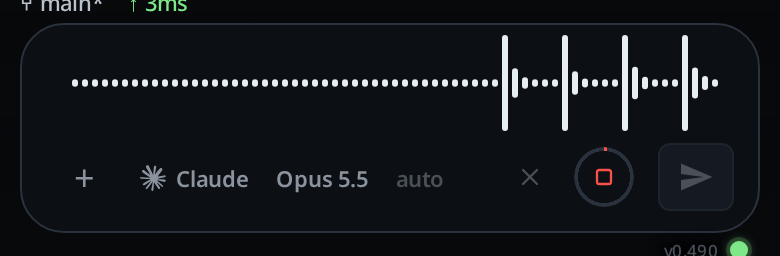
Recording. The ring fills toward the two-minute limit. - Open the cog and switch on Send after dictating, in the Voice group. Your words now send themselves one second after they land. Tap Cancel in that second if they came out wrong.
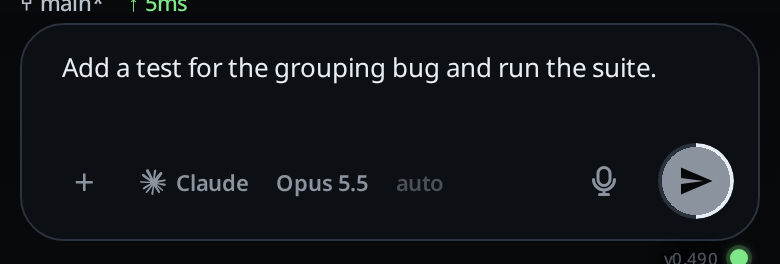
The ring fills for one second, then the message goes.
Open a new tab in two taps
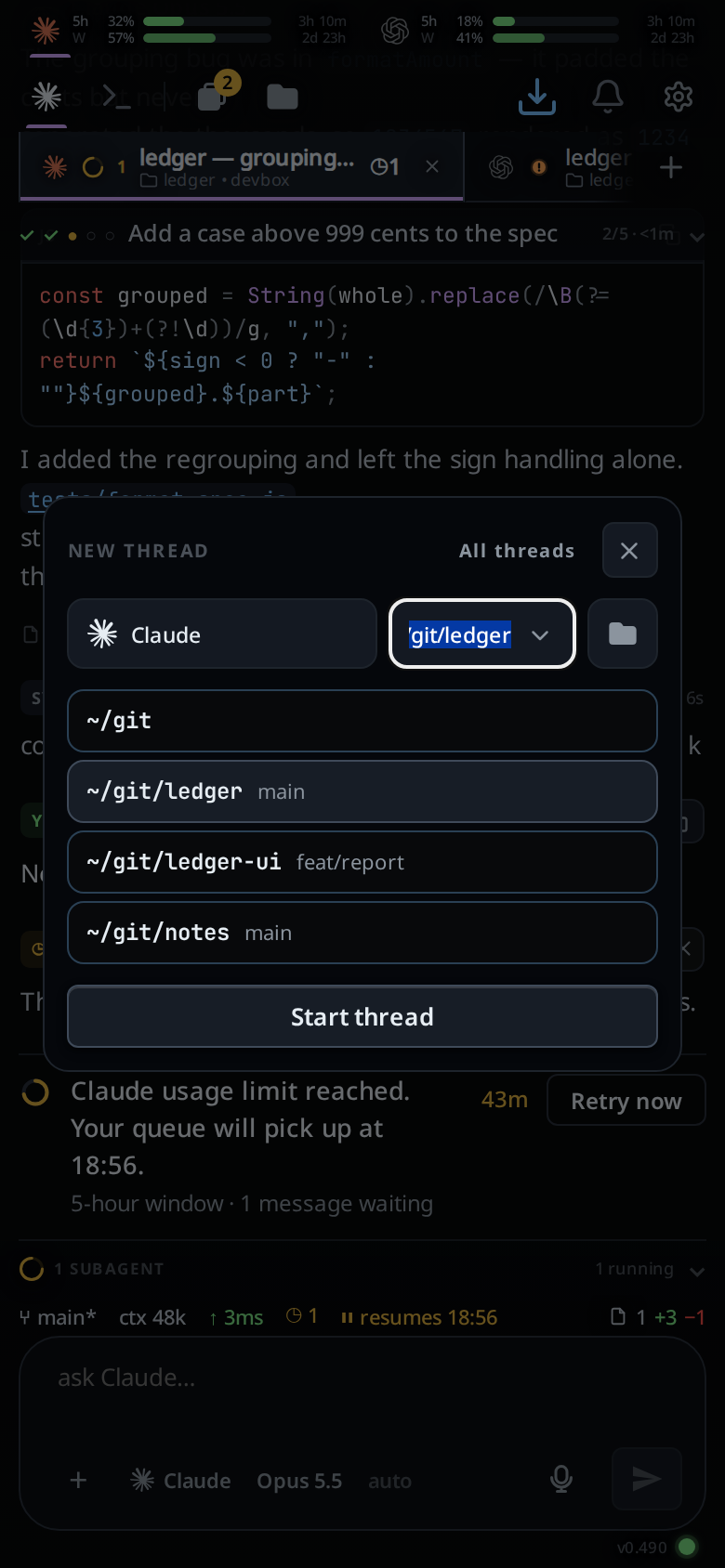
I start a new tab for every task. Tap the + after the last tab, or swipe past the end of the tabs to the new-thread page and tap it. The folder box is already filled with the folder of the tab you were in, so tap Start thread, or the Enter key on your keyboard, and the tab is open. Tap the mic and start talking.
Let the tabs name themselves
On a phone you can't read every transcript to remember which tab is which, so names matter. When you send the first message, Fezu asks the agent for a two-to-four-word name, and the tab takes it a few seconds later. This works for every agent: Claude, Codex, OpenCode and Cursor. To pick your own, send /rename and a name, or tap the tab's name.

Swipe between tabs and read the marks
Swipe the conversation sideways to move to the next tab. Each tab carries a mark that tells you whether it needs you:
| Mark | Meaning |
|---|---|
 Amber dot Amber dot | Working |
 Spinning arc and a number Spinning arc and a number | Subagents are running, and how many |
 Orange Orange ! | Waiting on you: the agent asked a question |
  Green tick Green tick | Finished. Filled until you open the tab, hollow after |
 Grey ring Grey ring | Idle: nothing running and nothing new |
I look at the ! tabs first, then the filled ticks. The rest can wait.
Jump straight to a tab
With eight tabs open, swiping is too slow.
- The tab strip at the top scrolls sideways. Flick it to reach either end.
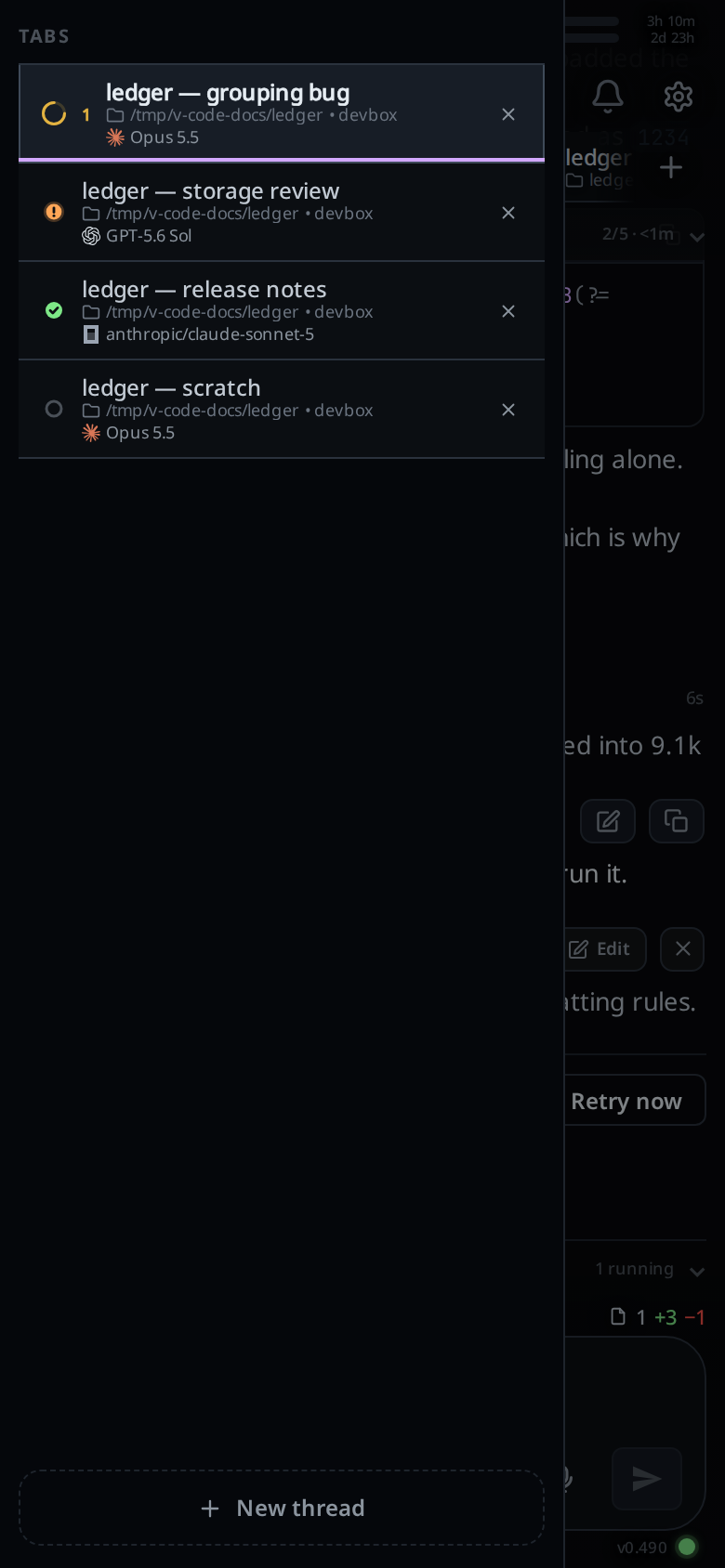
- The tab drawer lists every tab with its name, folder, agent and mark. Swipe in from the left edge, or tap the Tabs button. Its badge counts the tabs that are waiting or finished.
Watch your usage
The meters at the top show how much of Claude's and Codex's 5-hour and weekly windows you have used. When one agent runs low, I hand the tab to the other. Claude Code hit its limit has the steps.

Choose what the conversation shows
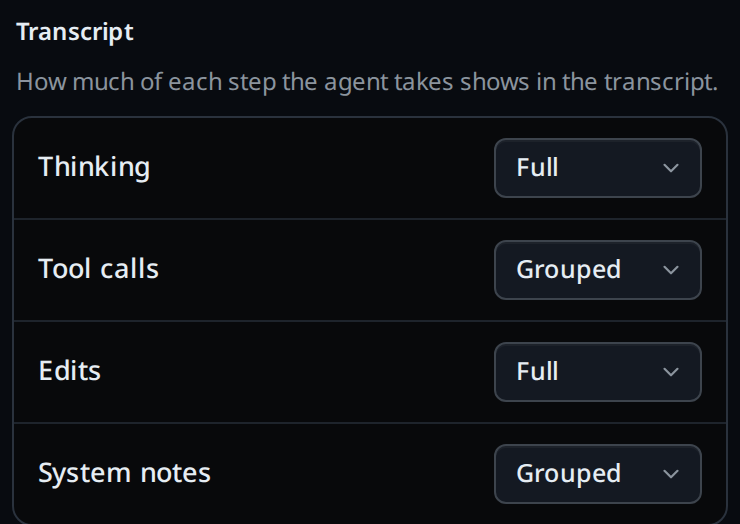
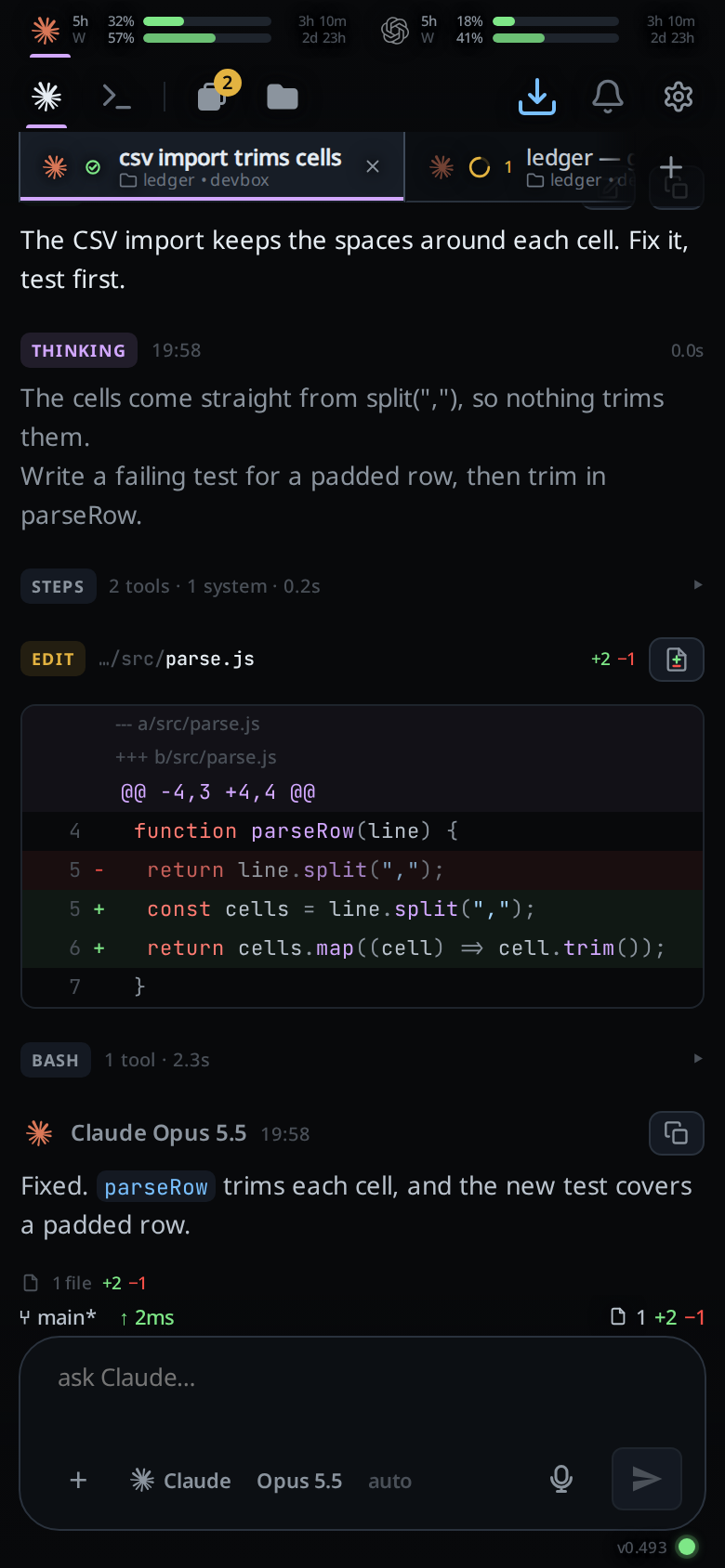
A long task fills the phone screen with commands and their output. I don't read most of it, but I still want to know how much ran and how long it took, and to drill down and see what happened when I need to. In the cog, the Transcript group sets each kind of step to Full, Grouped or Hidden. Mine:
- Thinking: Full. I read what Claude is planning.
- Tool calls: Grouped. A run of commands folds into one row, such as
2 tools · 0.2s. Tap it to see them. - Edits: Full. Every change shows as a diff, so I can read it when the code matters.
- System notes: Grouped. I rarely read these. Hide them if you like, but they can be useful.
Compact long sessions
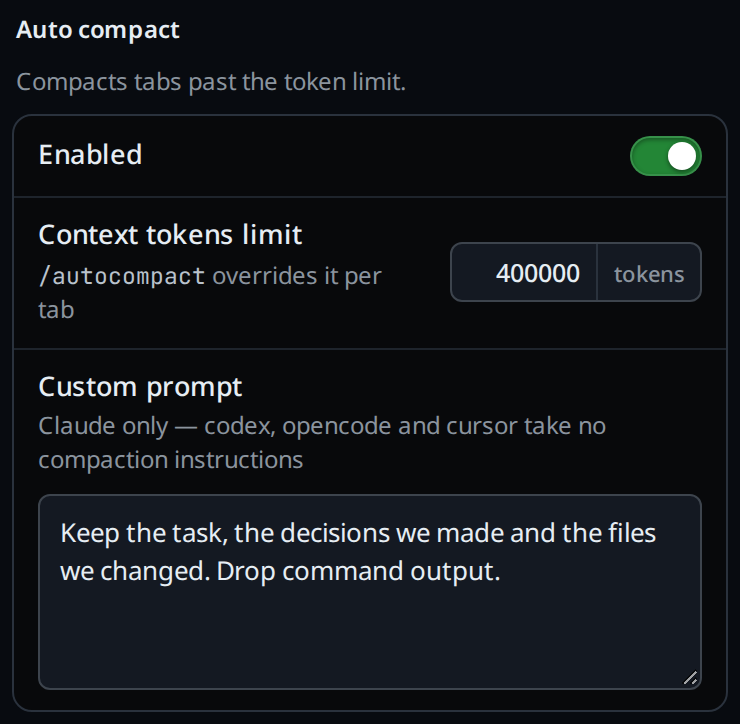
Auto compact summarises the conversation once it passes a token limit, and the agent carries on from the summary. It saves tokens, but I use it for the focus: a small context keeps the agent on the work in front of it. It runs between turns, never in the middle of one.
In the cog's Auto compact group, set the Context tokens limit. The default is 400000, which is what I use. The Custom prompt tells the agent what the summary must keep; only Claude and Cursor take one. Turn it off for a session where every earlier detail matters, or for one tab with /autocompact off. I rarely need that.
Choose how much the agent may do without asking
Each tab runs at a level, picked from the key in the composer. At Ask the agent stops before it runs a command, fetches from the web or touches files outside the folder, and the tab waits for you to tap Allow, Allow for session or Deny. At Auto the agent's own reviewer decides and asks you only when it will not. At Full it never asks. Plan first, at the bottom of the same menu, keeps the agent read-only until you press Build on its plan. See Permission levels and Plan first.
On a phone you can't read every command, so I run most tabs at Full, which is where new tabs start; the cog's Agents card changes that per agent. The guard rails then come from skills and instructions: how I want the work done, such as tests first, and what the agent must not touch. I switch a tab to Ask or Plan first when it works somewhere I care about, and answer its questions from the notification.
Turn on notifications
Tap Notify, the bell in the row under the meters. Your phone then buzzes when a tab finishes, fails, stops on a question or hits a usage limit, on every workstation on your account. I use them to keep track while I'm away from the phone. The tab marks decide what I work on next. On an iPhone, add Fezu to the home screen first: a Safari tab gets no notifications.

Set up Fezu
You need a Linux PC, a Windows PC or a Mac with Claude Code or Codex on it.
- Open a terminal on the workstation (PowerShell on Windows, Terminal on a Mac) and run the install command. On Linux or a Mac:
On Windows:curl -fsSL https://fezu.dev/install | shirm https://fezu.dev/install.ps1 | iex - When it finishes, Fezu opens. Log in or create an account with your email; we send a code to it. A new account gets a 30-day free trial.
- Scan the QR code Fezu shows with your phone's camera. Your phone opens Fezu on the same account.
- Add Fezu to your home screen when it offers. It then opens full screen, like an app.
FAQ
Can I use Claude Code on my phone?
Yes. Claude Code runs on your workstation, and Fezu shows its tabs on your phone at app.fezu.dev. You type or talk on the phone, and the work happens on the workstation.
Does it work on iPhone?
Yes, in Safari at app.fezu.dev. Add it to the home screen to get notifications.
Why is there no mic button?
Dictation needs the transcription service on your workstation. On Linux, run bash ~/.local/share/fezu/current/install.sh voice (~/.local/share/v-code/current/install.sh on an install from before version 0.1.282) once. It downloads a 482 MB speech model and needs uv and ffmpeg. Windows and the Mac have no dictation yet.
Does my workstation have to stay on?
Yes. The agents run on it. Switch it off and its tabs stop.
What does Fezu cost?
Fezu is free for 30 days, then $10 a month or $96 a year. Prices in pounds and euros are on the pricing page. You can also pay once for Lifetime. We sell a limited number of Lifetime plans. Your Claude and ChatGPT plans are separate: Fezu runs the agents you have and sells no AI usage of its own.
- Run the install command in a terminal on your computer.
- Fezu opens. Log in or create an account with your email. A new account gets a 30-day free trial.
- Scan the QR code with your phone to open Fezu there too.
More guides are on the guides page.