
Run a command from the keyboard
Press Ctrl+Shift+P (⇧⌘P on a Mac) or F1 to open the command palette. Type a few letters to find a command, an open tab or a project, then press Enter.
Why you would use it
You know what you want to do but not its key, or it has no key at all, such as opening a new project or settings. Or you have many tabs open and want to jump to one by name without reaching for the mouse.
How to use it
Press Ctrl+Shift+P, ⇧⌘P on a Mac, or F1. The palette (
#palette) opens at the top of the window with every command listed and its key on the right.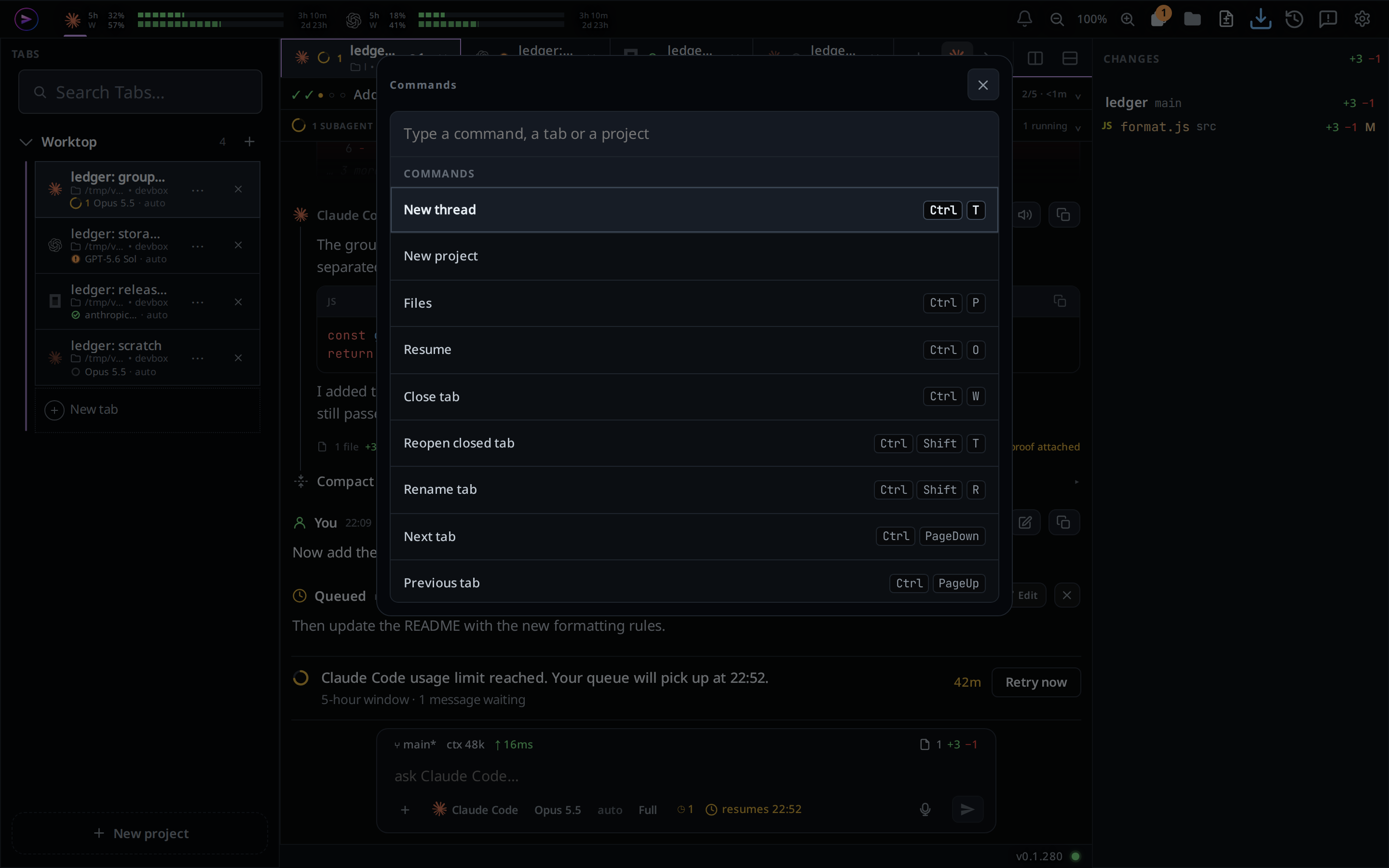
Type into the search box (
#palette-q). The list keeps the commands, open tabs and projects whose names hold every word you type, under COMMANDS, TABS and PROJECTS.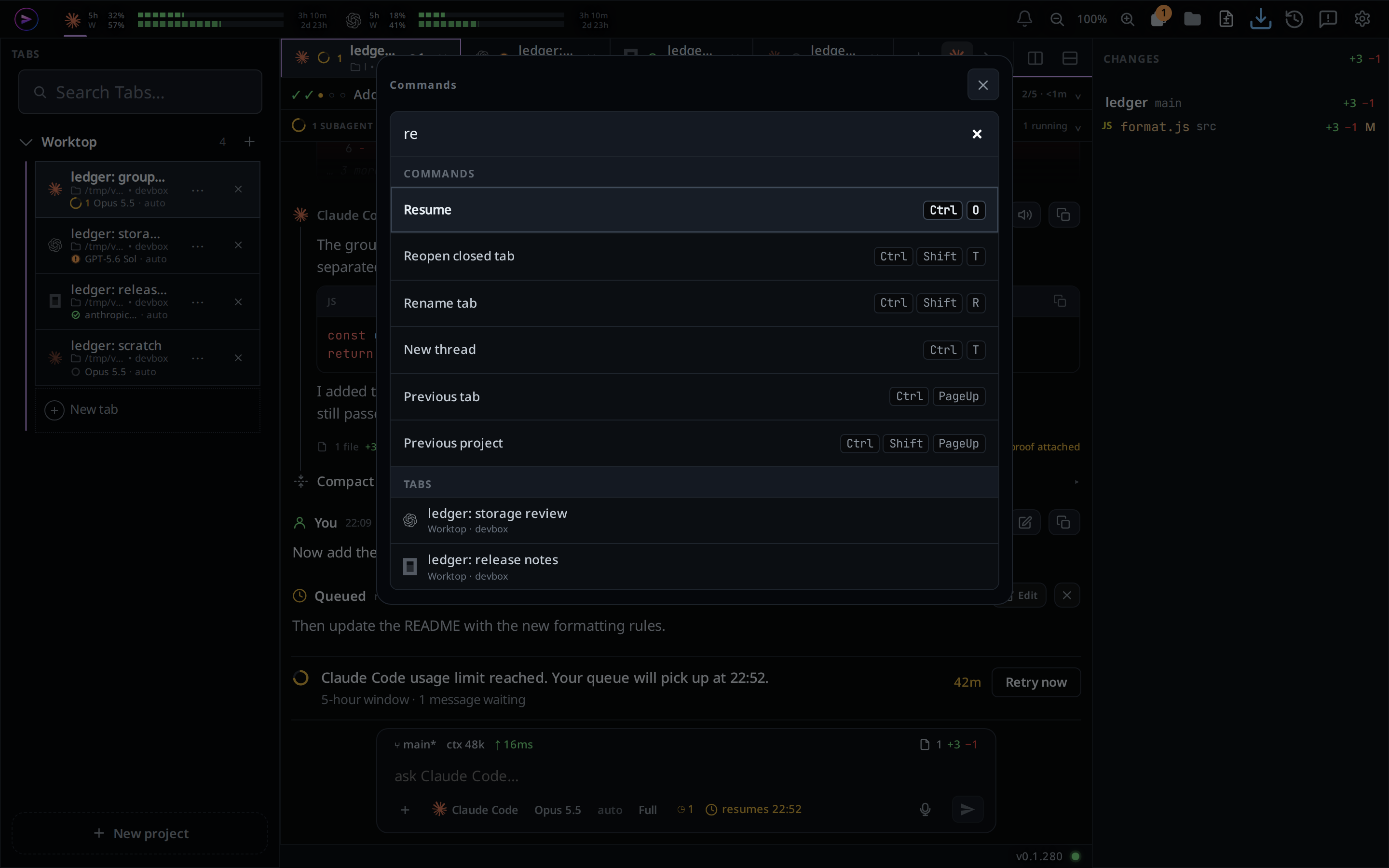
Move with ↑ and ↓ and press Enter, or click a row. A command runs, a tab comes to the front, and a project opens.
Escape, the × (
#palette-x) or a click outside the palette closes it. The same key that opened it closes it too.
What you see
- The row Enter runs is drawn the way the sidebar draws the tab in front: a lighter fill inside an outline, with its keys brightened.
- With the box empty the list is the commands alone. Tabs and projects show once you type.
- Commands whose names start with what you typed come first.
- A tab row shows its agent's icon, its name, and its project and workstation under the name.
- When nothing matches, the list reads "Nothing matches".
- A command that needs more from you opens the screen it always opens: New project opens the new project card, Resume opens the resume screen.
- Picking a tab you moved to Done brings it back to the strip.
- The palette opens over the transcript and panes, not over settings, a sheet or another popup. Close those first.
- Agent Commander opens the Commander, or goes back from it, as its icon does.
Options and settings
The palette lists these commands. Split right, Split down and Maximise pane show only on a wide window, the zoom commands only where the window can zoom, and Agent Commander only when its icon shows in the top bar.
| Command | Default key |
|---|---|
| New thread | Mod+T, Mod+N |
| New project | None |
| Files | Mod+P |
| Resume | Mod+O |
| Close tab | Mod+W |
| Reopen closed tab | Mod+Shift+T |
| Rename tab | Mod+Shift+R; Mod+R in the desktop app |
| Next tab / Previous tab | Ctrl+PageDown / Ctrl+PageUp |
| Next project / Previous project | Ctrl+Shift+PageDown / Ctrl+Shift+PageUp |
| Last tab | Ctrl+Tab |
| Dictate | Mod+Shift+M |
| Split right / Split down | Mod+D / Mod+Shift+D |
| Maximise pane | Alt+Enter |
| Terminal | Ctrl+, |
| Zoom in / Zoom out / Zoom to 100% | Mod+= / Mod+- / Mod+0 |
| Settings | None |
| Agent Commander | None |
The palette's own key is Command palette in Change keyboard shortcuts, where New project, Settings and Agent Commander can get keys of their own too. Each row in the palette shows the key you set.
Limits and known gaps
- Keyboard only. A phone has no button for it; every command there has its own.
- Firefox keeps Ctrl+Shift+P (⇧⌘P on a Mac) for a private window, so use F1 there, or give the palette another key.
- The composer's slash commands (
/clear,/compact,/model) are not in the palette. Type/in the message box for those. - The tabs listed are the open ones. A closed tab is under Recently closed or Resume.
Related
- Change keyboard shortcuts: give the palette, or any command in it, a key of your own
- Navigation and commands: every key and what it does
- Search your tabs: the tab bar's search, which also reads the tabs' messages