
Log in to an agent from your phone
When an agent is logged out on the workstation a tab runs on, the tab says so and offers a login right there. You open the vendor's page on your phone, finish the login, and VCode sends your message again. The settings sheet lists every agent's login and lets you log in again at any time.
Why you would use it
Claude's login expires, or Codex's token is revoked, while you are away from the workstation. The next message fails. You fix it from the phone instead of finding a terminal on that workstation.
How to use it
From the tab that failed
Send a message. If the agent is logged out, the line at the end of the transcript (
.fault) readsClaude Code is logged out on devbox., with the vendor's own words under it in grey. The name afteronis the workstation the tab runs on.Tap Log in to Claude (
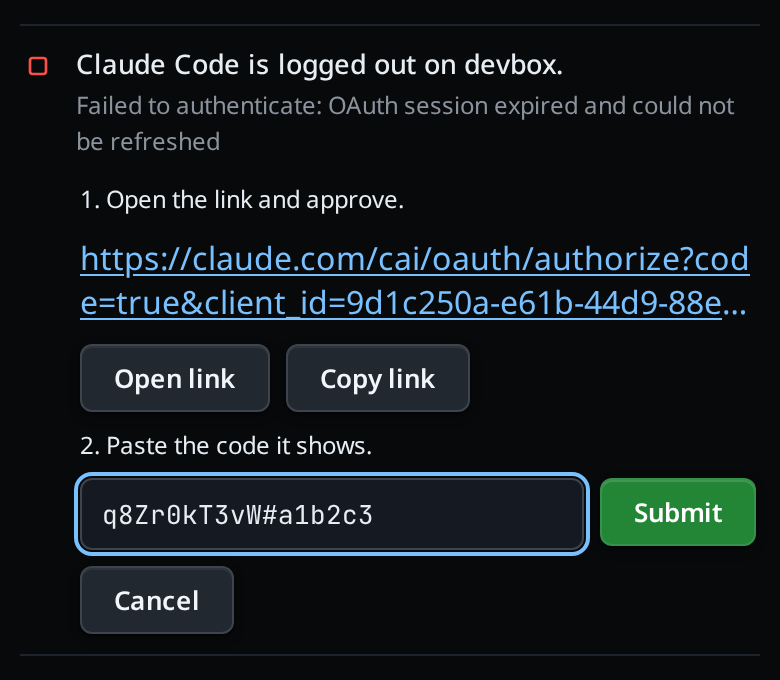
.agent-login-go). The login starts on that workstation and its steps replace the button.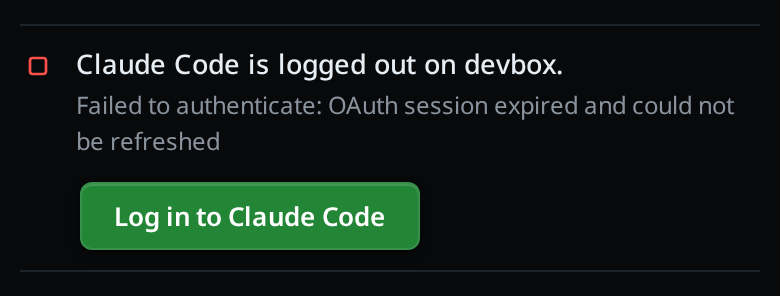
For Claude:
- Under
1. Open the link and approve., tap Open link, or tap the link itself (.agent-login-link). Copy link (.agent-login-copy) copies the whole URL. - Approve on Claude's page. It shows a code.
- Under
2. Paste the code it shows., paste the code into the field (.agent-login-code, placeholderPaste the code from the page) and tap Submit (.agent-login-submit) or press Enter.
- Under
For Codex:
- Under
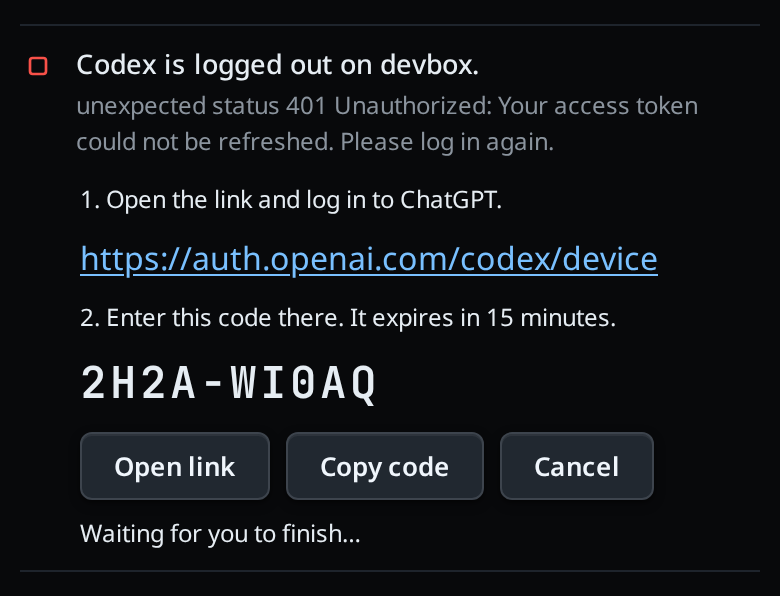
1. Open the link and log in to ChatGPT., tap Open link or the link. - Type the code shown in large letters (
.agent-login-usercode) on that page. Copy code copies it. - Come back to the tab. There is nothing to paste; it says
Waiting for you to finish…until Codex reports the login done.
- Under
For Devin, the steps are the Claude steps: under 1. Open the link and approve.
tap Open link or Copy link, then paste the code the page shows into the field
(.agent-login-code, Paste the code from the page) and tap Submit.
For Copilot, the login is the device-code flow, as for Codex. The card shows the link https://github.com/login/device and a code: open the link, type the code on that page, then come back to the tab.
For Muse, the login is a device code too: the card shows the link and the code muse login prints, which you confirm matches. An account with no payment method ends the login with Muse Code requires a payment method — subscribe at https://accountscenter.meta.com/muse_code/?ep=no_payg, then log in again.
When the login is done the line reads
Logged in to Claude as you@example.com. Sending your message again…and your last message goes again. The line goes when the new turn starts.
Cancel (.agent-login-cancel) puts the Log in to Claude button back.
From the settings sheet
Tap the cog (
#settings-open). The first group is Agents (#settings-agents):Each workstation has its own agents and logins. Tap an agent for its settings.Each row (
#agents-rows) carries the agent's mark, the name of its CLI (Claude Code, Codex CLI, OpenCode, Cursor CLI) and under it the CLI's version, ornot logged inornot installed. An agent that can run has a green tick after its name. A logged-out agent has a green Log in button on its row.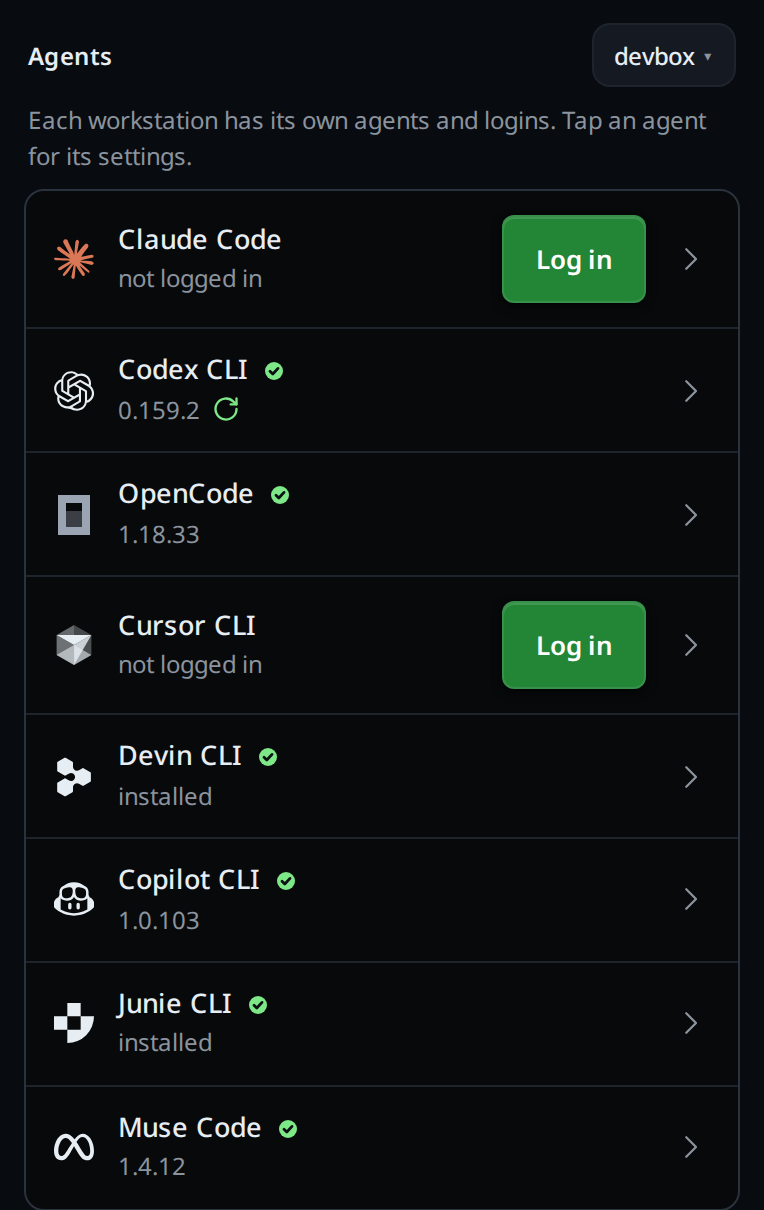
Tap the button. The login opens on its own screen (
#agent-screen) over the settings: the agent's mark, its name, the workstation (on devbox), and the same steps as above. The back button (#agent-screen-back), Cancel or Escape takes you back to the settings. When the login is done the screen closes, the rows update and a toast saysClaude Code logged in.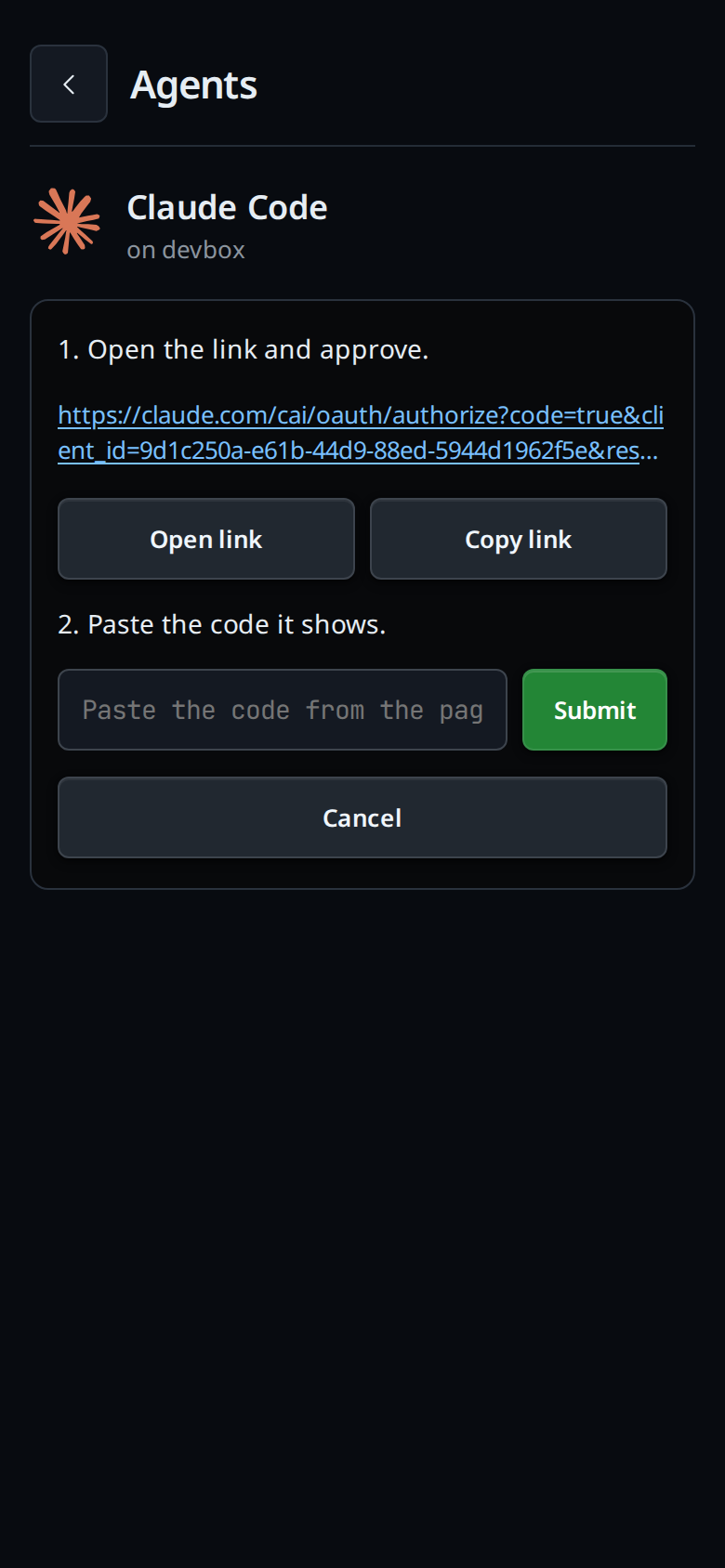
To log in again as someone else, tap a logged-in agent's row. It opens to show who is logged in (
Logged in as you@example.com) and Log in again, which opens the same screen.
In the app on app.fezu.dev, with several workstations paired, the group's title
carries a workstation pick (#agents-box). It starts on the active tab's workstation.
Tap it to open the list (#agents-box-menu) and pick another; the rows then
show that workstation's logins, and a login you start runs there. An
Install from the card runs on the same screen, and its login follows there.
From the agent picker
A logged-out agent reads Claude Code · log in in the composer's agent picker
(#agentpick). Tap it: the menu asks Claude Code isn't logged in. Log in?.
Log in runs the same steps, and the tab hands itself to that agent when the
login is done. The new-thread card has no agent pick, so a login before a new
thread runs from the settings sheet, as above.
With /login in a tab
Type /login in a Claude, Codex, Cursor, Devin, Copilot or Muse tab, or pick it from the slash
menu (#slashmenu). It opens the login for the tab's agent on the tab's
workstation, in the slash menu.
- Logged out, the login starts at once, with the steps above.
- Logged in, the menu says
Logged in to Claude Code as you@example.com.with Log in again and Cancel. Log in again runs the same steps. The account you log in with replaces the old one for every tab on that workstation.
On an OpenCode tab /login opens nothing; see Limits.
Copilot needs a GitHub login like the others: without one, its row in the
Agents group shows not logged in and a Log in button. A workstation where
the GitHub CLI (gh) is logged in counts as logged in to Copilot.
What you see
| Where | Text |
|---|---|
| Fault line | Claude Code is logged out on devbox. / Codex is logged out on devbox. |
| Claude step 1 | 1. Open the link and approve. |
| Claude step 2 | 2. Paste the code it shows. |
| After Submit | Checking the code… |
| Codex step 1 | 1. Open the link and log in to ChatGPT. |
| Codex step 2 | 2. Enter this code there. It expires in 15 minutes. |
| Devin steps | The Claude steps: 1. Open the link and approve., then 2. Paste the code it shows. |
| Copilot steps | The device-code steps: the link https://github.com/login/device and the code the card shows |
| Muse steps | The device-code steps: the link and the code the card shows |
| Codex waiting | Waiting for you to finish… |
| Done, in the tab | Logged in to Claude as you@example.com. Sending your message again… |
| Done, elsewhere | Logged in to Claude Code as you@example.com., then the toast Claude Code logged in |
| Failed | Login failed: … with Retry and Cancel |
/login, already logged in |
Logged in to Claude Code as you@example.com. with Log in again and Cancel |
| Submit with an empty field | toast Paste the code from the page first |
The notes in the settings rows:
| Note | Means |
|---|---|
2.1.286 |
the CLI's version: installed and logged in, or an agent with no login |
installed |
installed, but the workstation did not report the version |
not logged in |
logged out, or the login check gave no answer in time |
not installed |
the CLI is not on that workstation; the row offers Install |
An open row names the account: Logged in as you@example.com for Claude,
Logged in · ChatGPT for Codex.
The workstation pick in the app says per workstation Claude Code logged out,
Claude Code, Codex logged out or all logged in, followed by
· Codex, OpenCode not installed when it lacks any agents. A workstation that is offline,
still connecting, or has refused this device is listed with that reason and
cannot be picked.
Options and settings
| Option | Default | What it changes |
|---|---|---|
| Poll interval | 3 seconds | How often an open login asks the workstation whether it is done |
| Login timeout | 15 minutes | A login still running after this is stopped and reads login timed out; try again |
| Code length | 1 to 512 characters | A pasted code outside this, or with control characters, is refused |
Limits and known gaps
- A wrong Claude code ends that login: Claude does not ask again. Tap Retry for a new link and a new code.
- Codex reports no email, so its note and the done line name
ChatGPT(oran API key) instead. - OpenCode has no login here. Once installed it has no row in the Agents
group, and a failure shows the plain error line with Retry.
/loginon an OpenCode tab shows the toast/login: OpenCode logs in per provider. Switch to Shell mode and runopencode auth login. - An agent whose CLI is not installed on the workstation has no login. Its
row in the Agents group says
not installedwith Install, and the agent list showsInstall <agent>; see install-an-agent. The login follows the install. - Cancel stops the page from checking; it does not stop the login running on the workstation. Starting again while one runs shows that same login.
- Only an
https:link is tappable. Anything else in the CLI's output shows as text you can copy. - Anyone who can open VCode can log the workstation's agents in, a paired phone included. Treat that as full trust, as permission-levels explains.
Related
- log-in-to-cursor-from-your-phone: the same login for Cursor
- devin: running a Devin tab after its login
- copilot: running a Copilot tab after its login
- muse: running a Muse tab after its login
- mcp-servers: log in to an MCP server the agent uses, from
/mcp - errors-and-retry: the other lines at the end of a transcript
- the-three-agents: the agents and what each one can do
- install-an-agent: install an agent first, then log in
- start-a-thread: the agent list with
· log in - hand-a-tab-to-another-agent: a handoff to a logged-out agent logs in first
- slash-menu:
/loginand the other commands VCode runs - work-on-several-boxes: why each workstation has its own logins