
Use VCode from app.fezu.dev
Open app.fezu.dev on your phone, type your email and log in on fezu.dev with the code it sends, which sends you straight back to the app. The app opens VCode on every box linked to the account, through the VCode router, with the tabs of every box in one strip. No box asks for a code unless it removed this device (add-a-phone).
Why you would use it
The app is the only way to use VCode: a box serves no page of its own. The app is served from app.fezu.dev; everything you do in it goes to your box over an encrypted channel the router only forwards.
How to use it
Open app.fezu.dev. The login card sits over the empty app and says "Log in or create an account with your email. We send a code to it." Type your email (
#rs-login-email) and tap Continue (#rs-login-go), or press Enter.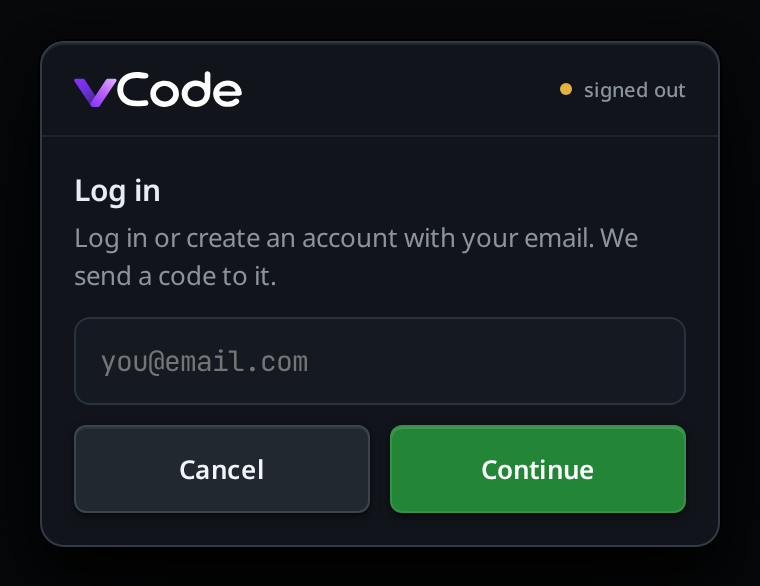
An address that is not an email stays on the card with "That does not look like an email address." On a first visit, Cancel (
#rs-login-cancel) empties the card. When your login ran out, the card has no Cancel. Continue with the box empty takes you to fezu.dev, where you type it.Open the app on your fezu.dev account page skips the card: the app goes straight to fezu.dev, which is logged in already and sends you back logged in, with no code and no click.
When the install command or
v-code box linkopened the app, the card readsCreate an account or log in to connect <computer>. We send a code to your email.(this computerwhen the computer has no name). Cancel drops the link and shows the plain card. Continue goes to fezu.dev's link page, which sends the code. Once you enter it, the site links the computer to the account and sends you back to the app, signed in, with the computer in it. A new email makes a new account with 30 days of the full plan (free-trial). A browser signed in already signs out first and goes to the link page, which asks to connect the computer to the account fezu.dev is logged in to; the app then signs in to that same account (link-this-box). An account with no email adds one first.fezu.dev sends a code to your email and shows the code boxes. Type the code. The site sends you back to the app, which logs this browser in as a device of its own. When this browser is logged in to fezu.dev already, the site sends you back at once, with no code.
VCode opens with the tabs of every box on the account. On a browser that has never opened the app, it opens the tab you last sent a message in, on any box and in any project, passing over tabs marked Done; with none, the first tab in the strip. After that it reopens the tab you left. The first time the app opens a box it keeps the box's key as the site lists it, and checks the box against it from then on. A box that is off leaves its tabs in the strip marked unavailable (work-on-several-boxes).
Each later open starts on the boxes the site listed last time, without waiting for the site. When the site answers, a box no longer on the account closes with "This workstation is no longer on your account.", and a box new on it joins the strip with the toast "New workstation on your account. It is in your list now." The app asks the site again every 30 seconds while it is in view, and when you come back to it or switch to its window, so a box you link while the app is open joins within half a minute, without a reload.
With no box on the account yet, the box list shows
No workstation is linked to <email> yet.instead. Boxes (#rs-to-boxes) shows the list any time: each row readspairedonce the app has opened that box, andreadybefore.A box that removed this device refuses it. Its tabs say so. To pair it again, tap the plus (
#new-tab), the box pick, then Add or pair a workstation, and tap the box in the list. The pair screen shows the box name, its fingerprint, "Does the box show this fingerprint?", andThis box asks for pairing. On the box, run v-code box pair and type the code it shows.Compare the fingerprint with the one on the box. Tap No (#rs-pair-no) to go back to the list, or Yes (#rs-pair-yes) to enable the code field. Type the code in#rs-pair-code(XXXX-XXXX) and tap Pair (#rs-pair-go).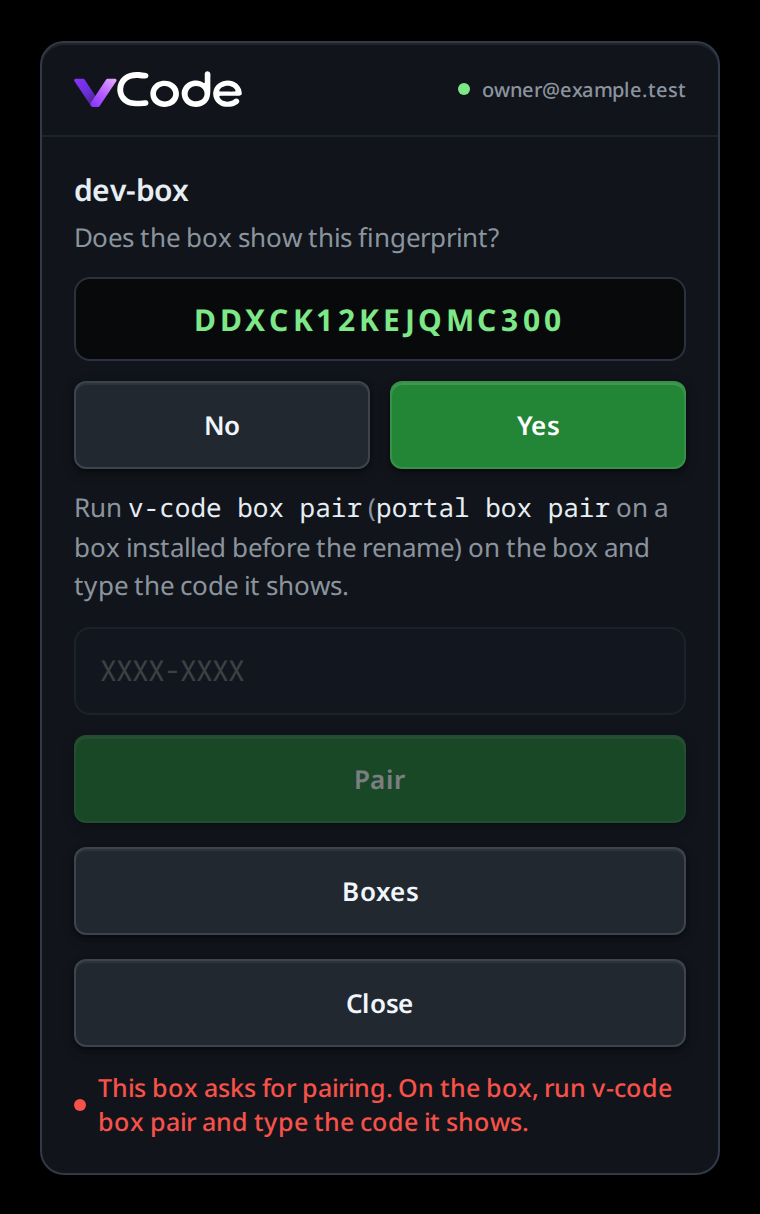
What you see
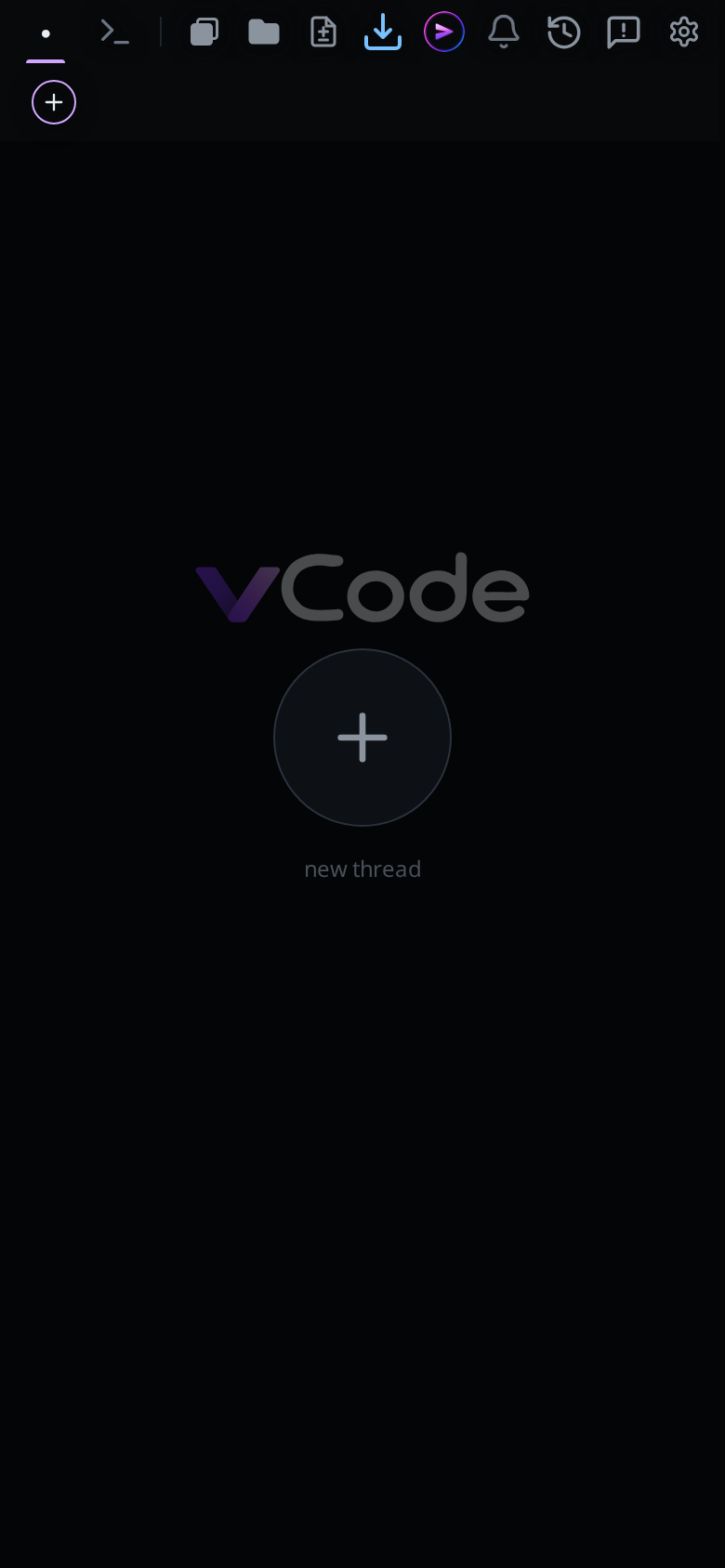
The page stays dark while it opens: it shows the tab you had in front once that tab has loaded, or whatever it has after three seconds, so a start or a return from the login does not flash the empty shell on the way.
While logging in and pairing:
- No box on the account:
No workstation is linked to <email> yet., with the link Add a workstation on fezu.dev (#rs-boxes-site) under it, which opens fezu.dev/account in the same tab (add-a-workstation). The list with boxes has the same link. - The trip back from fezu.dev took longer than a minute, was used already or was refused: "That login link has expired. Log in again."
- A wrong or expired pairing code: "That pairing code is wrong or has expired."
followed by
N tries left.when the box says how many. - The site cannot be reached:
Could not reach <host>. Check the connection and try again. - Signed in to an older trial account, one with no email: the Add your email
card (
#rs-claim) covers the app, readingAdd your email to keep using VCode. We send a code to it.It has no Back. Type your email and tap Send code (#rs-claim-send), then type the code in the eight boxes (#rs-claim-code), laid out as on the fezu.dev login; the eighth digit adds the email, as Add email (#rs-claim-verify) does, and VCode opens. An email that has an account already getsThat email already has an account. Log in to it, then on the computer run: v-code box unlink, then: v-code box linkand a buttonLog in as <email>(#rs-claim-login), which signs this browser out of the trial and opens the login with that email. An account that added its email on another device goes straight into VCode (free-trial). - The box list cannot be loaded because the site is unreachable, busy (429) or
failing (5xx): the error and
Trying again in N s.. The wait starts at 2 s and doubles to 60 s, or follows the site'sRetry-After. Try again (#rs-status-action) asks at once. Any other refusal shows the error with Try again and no timer.
While you pick and pair a box, the app shows one of these screens when it cannot open it. Once VCode runs, a box that is off or refuses this device marks only its own tabs (work-on-several-boxes).
| Screen | Exact text | What you can do |
|---|---|---|
| Offline | "This box is offline." and Trying again in N s. |
Wait, it retries; or Boxes (#rs-to-boxes). While pairing, the pair screen says "This box is offline." under the code |
| Busy | "The box has no room for another connection. Trying again in a few seconds." | Wait |
| Connecting | "Connecting to the box…" and Trying again in N s. |
Wait. When the site gives no token (unreachable, 429 or 5xx) the wait is the box list's: 2 s doubling to 60 s, or the site's Retry-After. A router or box that stops answering lands here too: after 10 s without an answer to the open (30 s for a pairing), the app drops its connection and tries again |
| Box older | "This box runs an older version. It updates itself within the hour." | Try again (#rs-version-retry) |
| App older | "Reload the app to talk to this box." | Reload (#rs-reload) |
| Key changed | "This box's key changed. Pair it again." | Pair again (#rs-status-action): the pair screen says "This box has a new key. Pair only if the box shows this fingerprint." The old key stays pinned until that pairing succeeds |
| Asks for pairing | "This box asks for pairing. On the box, run v-code box pair and type the code it shows." | The box removed this device, or already let in 100 devices through the account. Type a code from the box on the pair screen. It pairs against the key the app pinned; if the site now lists another key for the box, you get Key changed instead |
| No WebCrypto | "This browser cannot make the keys VCode needs." | Use another browser |
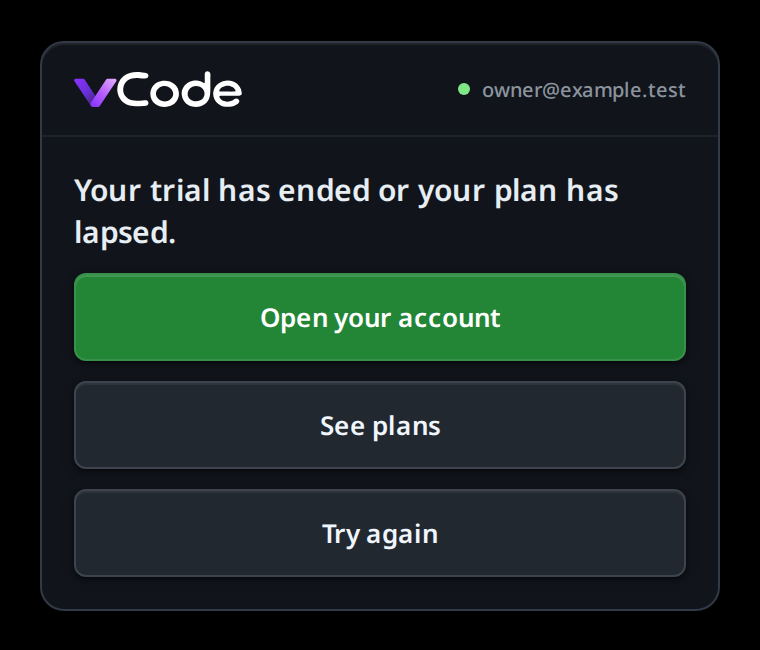
A lapse, or a login the site no longer accepts, covers VCode with its screen. A key change, a removed device or a version refusal from one box after VCode runs marks that box's tabs instead; in one of its tabs, tap the banner above the composer that gives the reason to open that box's screen. That includes a refusal the box gives when the app reopens a thread's live stream.
When a new build of the app is waiting, the sheet shows Update ready: reload
(#rs-update) on whichever screen is up, since the sheet covers the top bar's
update button. Tap it and the app reloads on the new build.
Options and settings
None in the app. The box's side is in link-this-box.
Limits and known gaps
Off in the app, on while you use the box directly:
- Linking, unlinking or pairing the box. A phone cannot; those run on the box
(
v-code box).
Also:
- Boxes during a pairing does not stop it on the box. If the code was right, the box keeps this device and the app keeps its key, so the list opens that box without another code. The app stays on the list either way.
- The app takes each box's key from the site the first time it opens the box. After that a changed key shows Key changed. Only the pair screen shows a fingerprint to compare.
- A connection sends at most 48 requests at once and holds the rest back in
order, so a transcript with many screenshots loads every image, a few at a
time. Event streams never wait behind them. The box answers
503past 64 open streams.
Related
- link-this-box: link the box first
- add-a-phone: the pairing code and the device list on the box
- add-a-workstation: add a workstation on fezu.dev/account with one command
- work-on-several-boxes: tabs from every paired box in one strip
- switch-accounts: which account the app is on, and switching from fezu.dev
- dictate-a-message: the mic, which shows while the box of the tab in front has voice
- turn-on-notifications: push, one switch in the app for every paired box