
Browse for a folder and set the default
The folder button above the folder box lets you walk the machine's folders instead of typing a path. Set as default then makes that folder the one new threads start in.
Why you would use it
New threads start in your home folder. If most of your work lives in one place,
such as ~/git or a single repo, you would otherwise pick it on every new
thread. Browsing also helps on a phone when you do not remember the exact path.
How to use it
- Open the new-thread card (
#newthread), or the NEW THREAD section of the Threads sheet. - Tap the folder button (
.cwd-browse, "Browse folders") at the right end of the Folder label line, above the box. A folder list slides in from the right (#folderpick), open on the folder in the box. - Tap a folder to go into it. Tap the up arrow (
#folderpick-up, "Up") to go to the folder above.
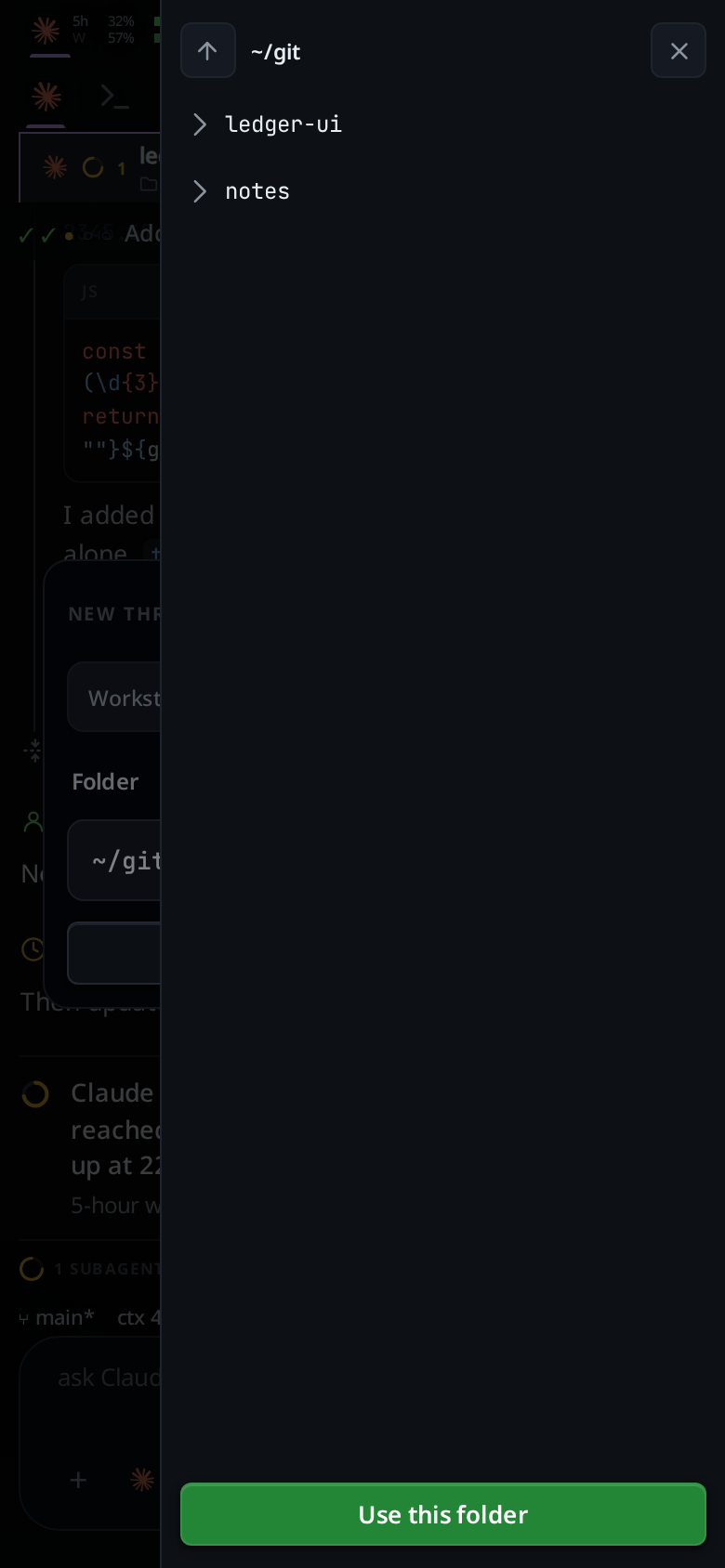
- Tap Use this folder (
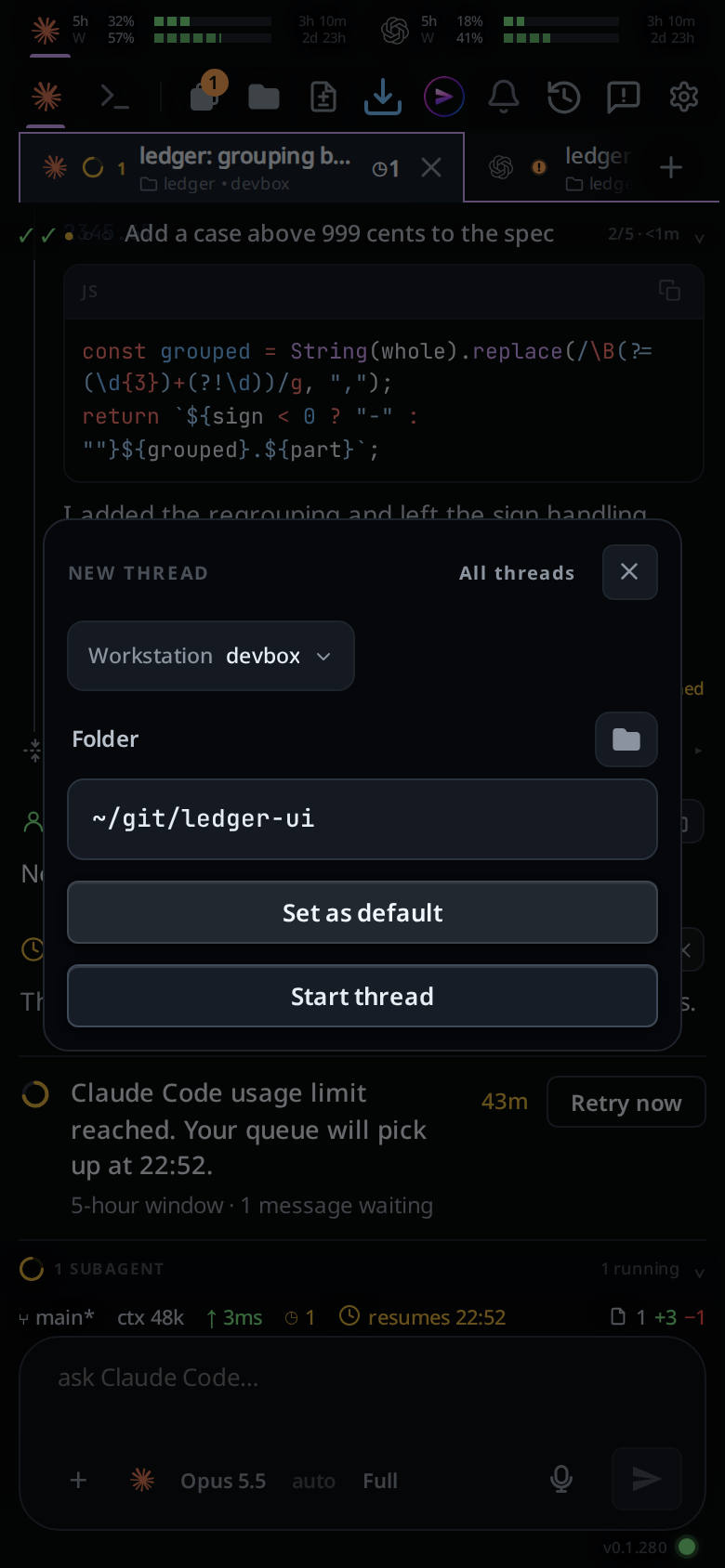
#folderpick-use). The list closes and the folder box holds the folder you were in. - Tap Set as default (
.new-default) to make it the default. Or tap Start thread to use it only this once.
What you see
- The folder list shows folders only, and links to folders. A folder with none
inside says
no folders here. A folder that cannot be read shows the error in its place. - Set as default shows only after Use this folder, while the folder box holds that folder and it is not the current default. A folder you type or pick from the folder menu does not offer it, and typing in the box hides it.
- After a save the toast says
new threads start in <folder>and the button goes away. - A folder that does not exist is refused with
no such folder: <path>. - Right after the page loads, before the workstation has said where new threads
start, the folder button says
folders are still loading.
Options and settings
| Option | Default | What it changes |
|---|---|---|
| default folder | your home folder | Where a new thread starts when no tab is open to take the folder from, and where the folder list opens when the box is empty |
The default is kept per workstation. In the VCode app, Set as default saves it on the workstation picked in the card. It is the one setting that does not sync between workstations on your account: a change from another workstation never replaces it.
Limits and known gaps
- The card still opens on the folder of the tab on screen. The default fills it only when no tab is open.
- There is no reset button. To go back to the home folder, browse to it and tap Set as default.
- A default folder deleted later is dropped when the server restarts, and new threads start in the home folder again.
- The list has no filter; type in the folder box for that.
Related
- pick-a-folder: typing a folder in the same box
- start-a-thread: the card these controls live in
- file-explorer: the list this one is dressed as
- synced-settings: the settings that do follow you between workstations